Orders are dispatched the same day if placed before 3pm (Monday to Friday). Find out more

In this tutorial, we will explain step by step how to replace the screen on your iPhone 12 or 12 Pro. Find the video tutorial on our YouTube channel!

Required equipment

- New screen for iPhone 12/12 Pro

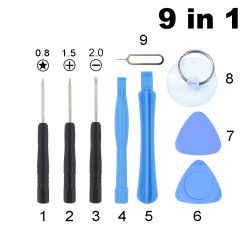
- Screwdrivers suitable for the different screws on the iPhone

- Metal opener or pick

- Plastic pick

- Plastic spatula

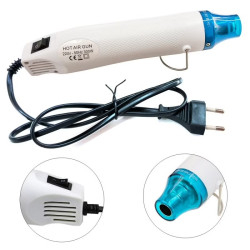
- Heat gun

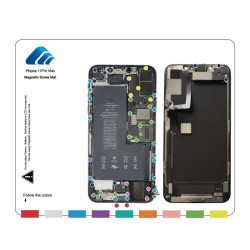
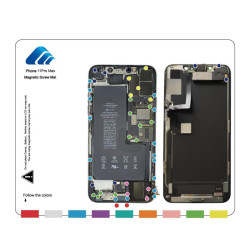
- Magnetic template (optional)

*The tool kit is offered free of charge with any order for a screen or battery on our website (excluding heat gun and magnetic template).

Repair time: 20 minutes

Repair difficulty: medium
Repair steps

- Start by setting up on a clean, well-lit work surface

- Prepare your tools and the magnetic template so that you do not mix up screws and other parts

- Switch off your mobile phone

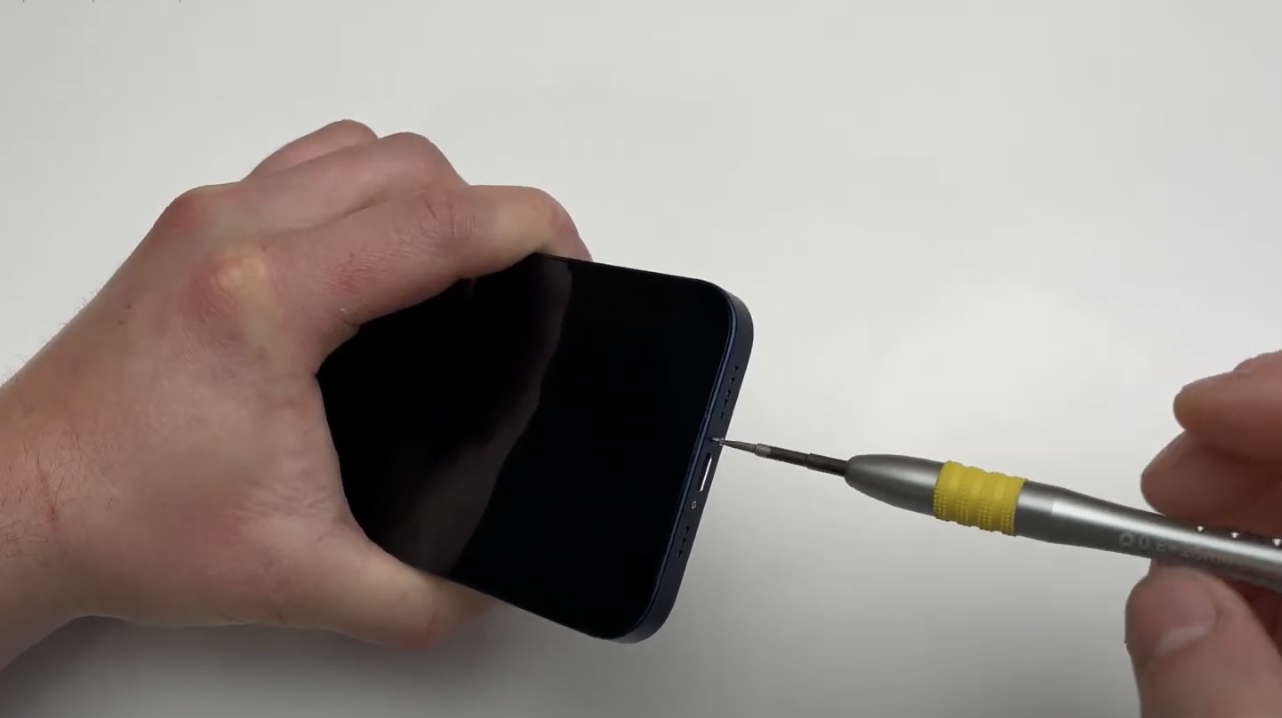
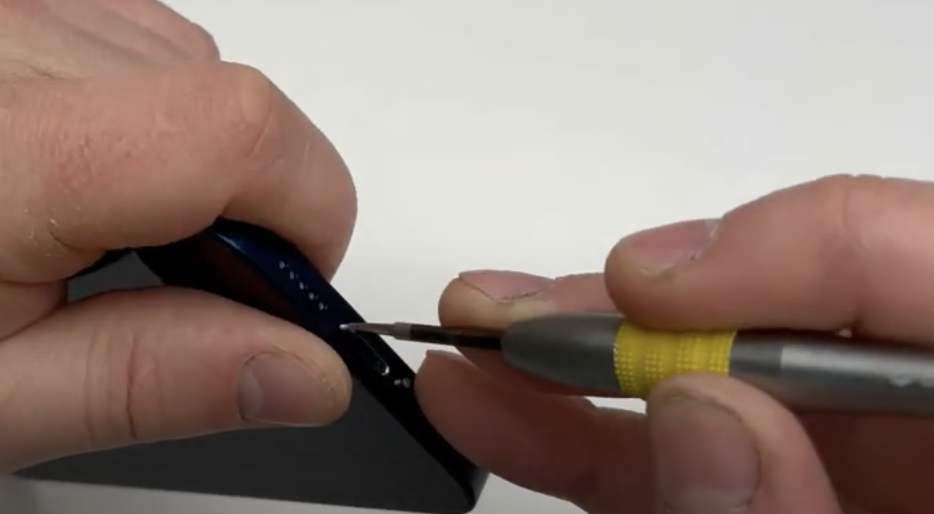
- Remove the two screws at the bottom of the chassis: Take the white screwdriver from the tool kit and remove the two Torx screws on either side of the charging port. 
Set them aside. (Be careful not to mix them up with the other screws that you will retrieve later).

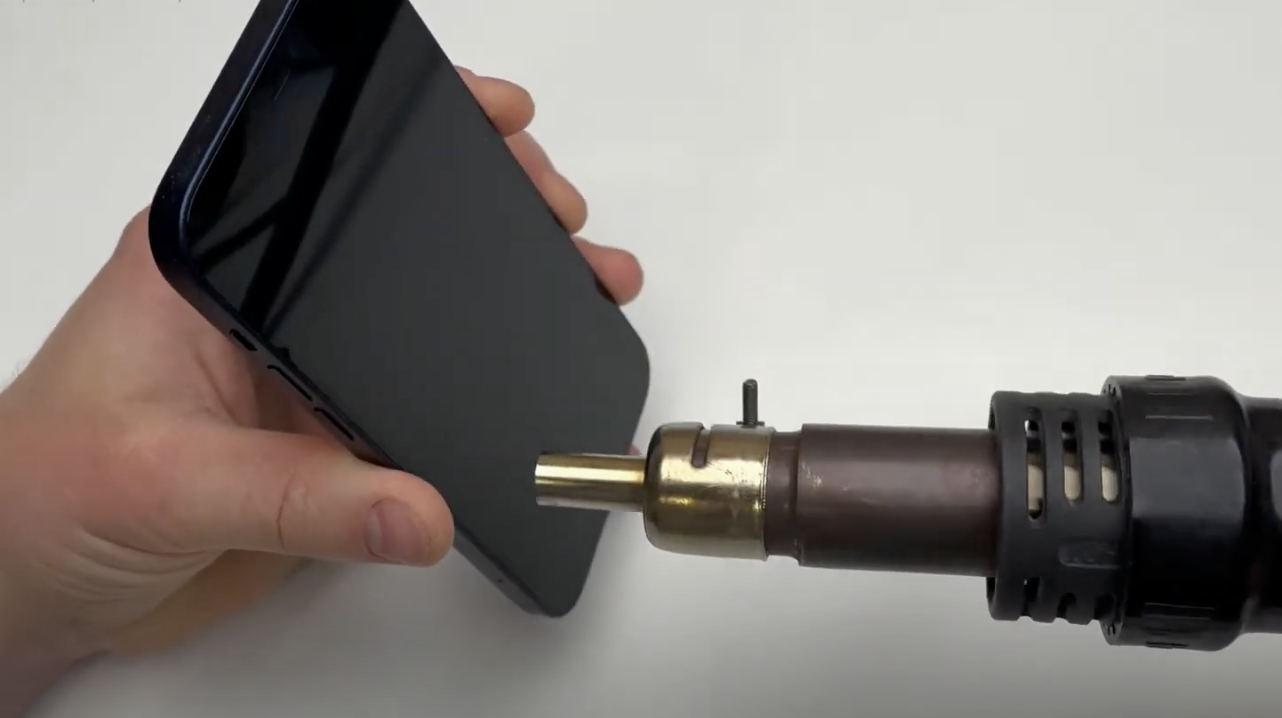
- Heat the screen with the heat gun: Take the heat gun and heat the edges of the screen for 30 seconds to 1 minute. This will soften the adhesive seal and make it easier to remove the screen.

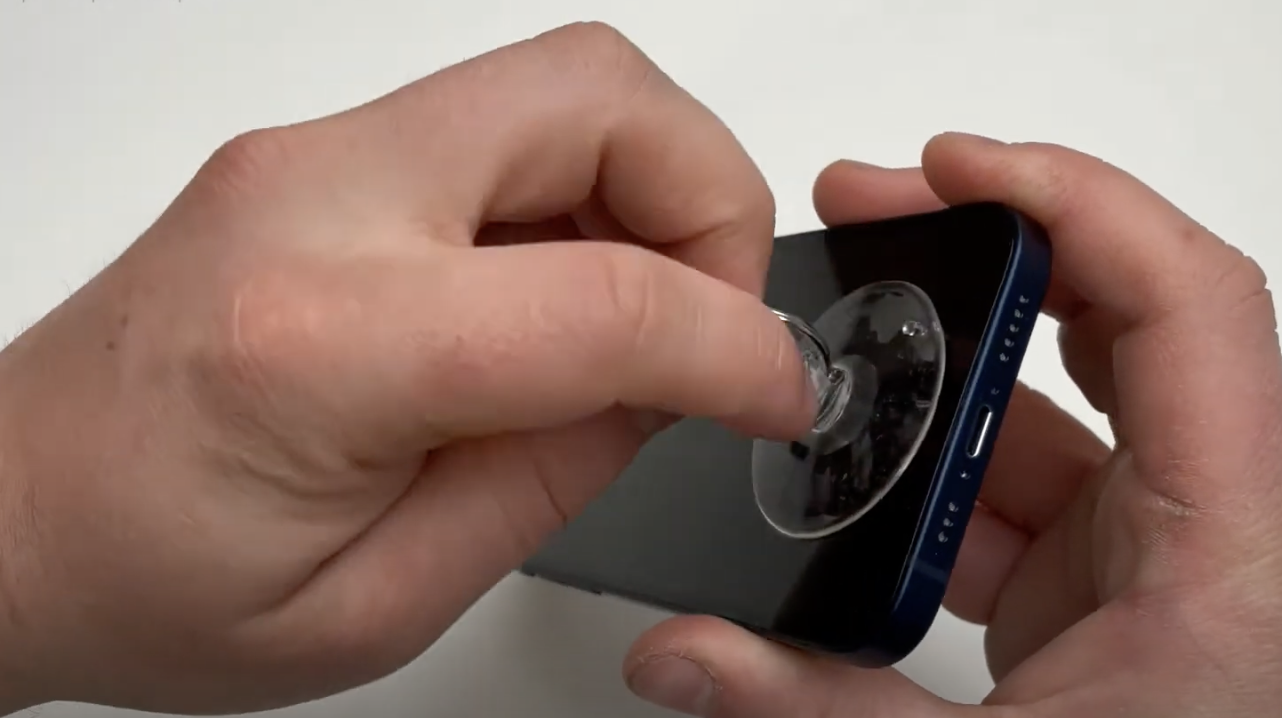
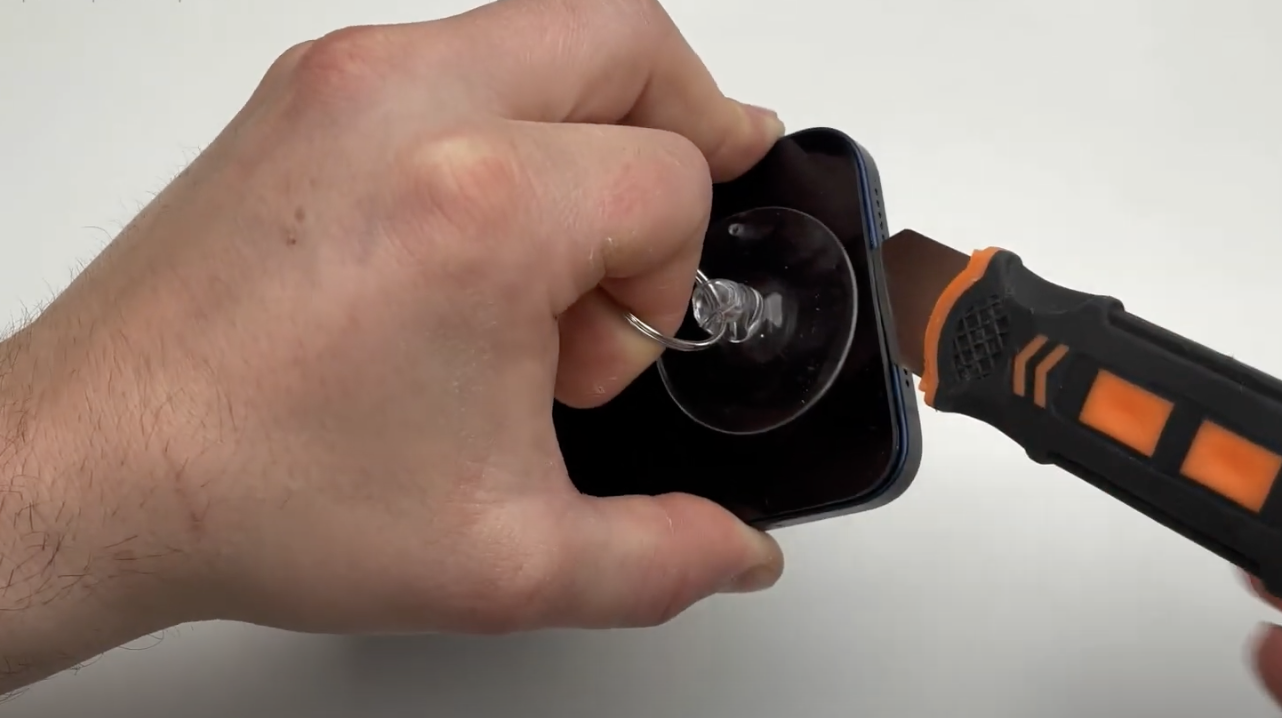
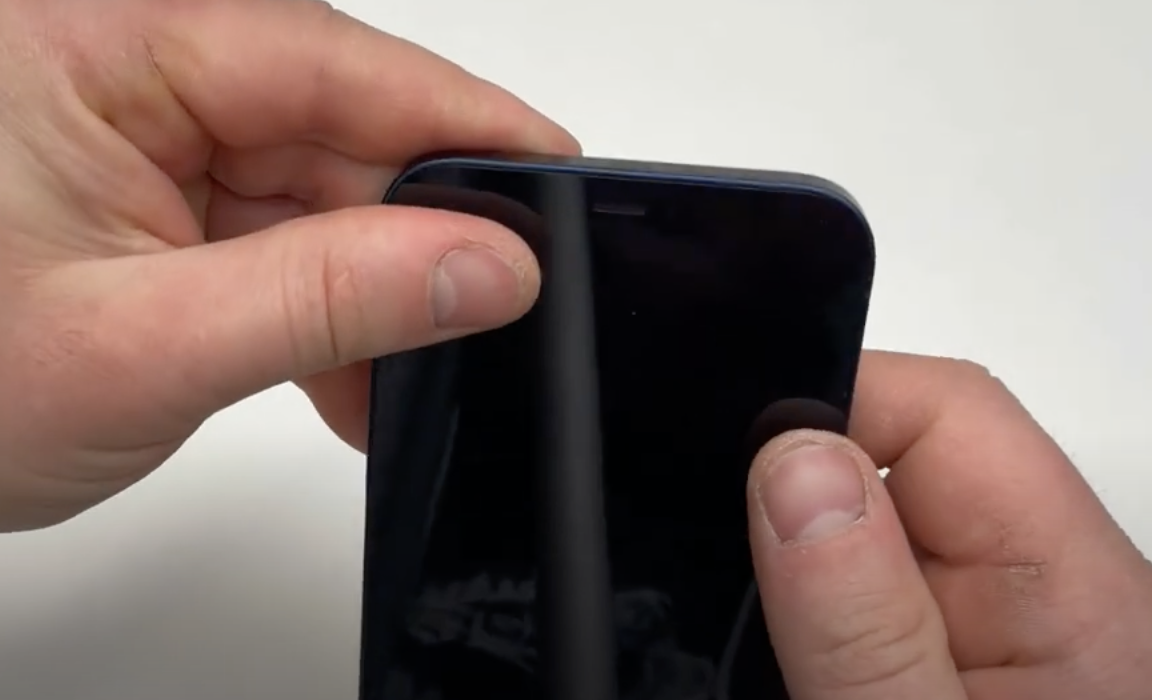
- Place the suction cup at the bottom of the screen:

Place the suction cup at the bottom of the screen and lever it up using the ring. This will lift the screen and slightly detach it from the frame. 

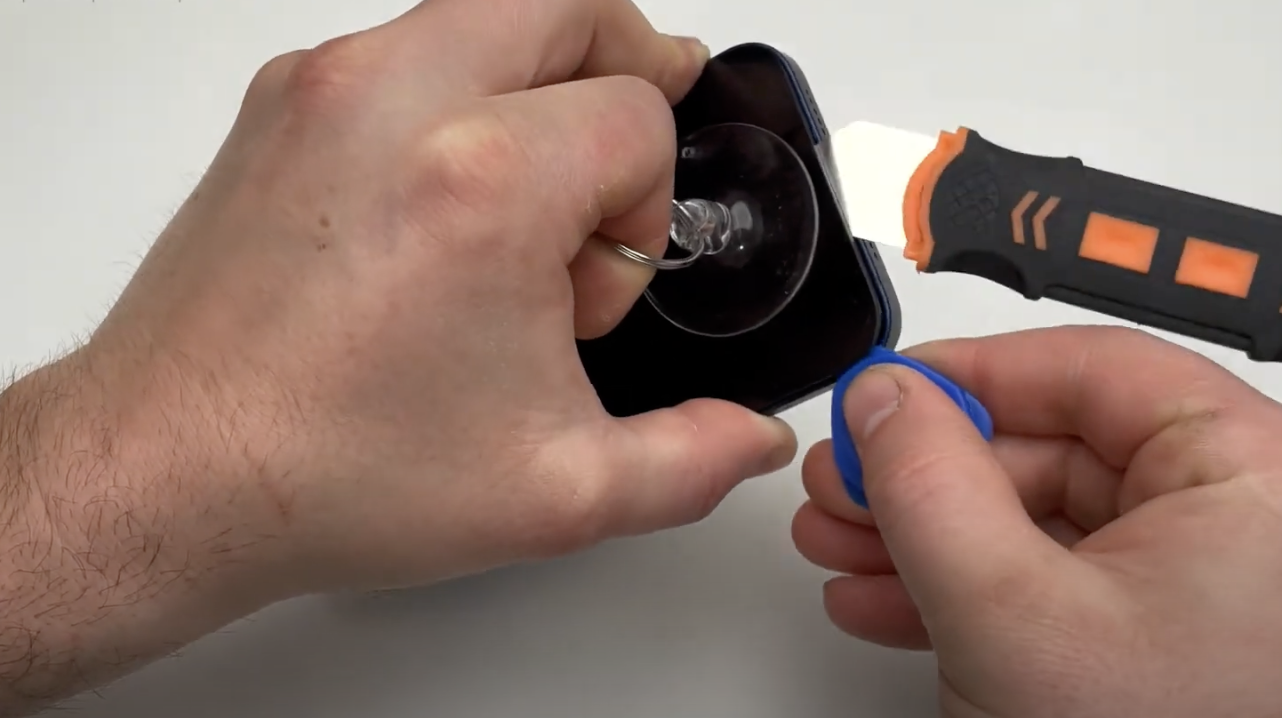
- Lever it open with a metal guitar pick or opener:

Slide the metal pick or opener into the opening you created with the suction cup, and gently lever it to keep the opening open.

- Unclip the screen with the plastic pick:

Slide the plastic pick into the opening and then remove the metal pick/opener. Now go around the screen with the pick to unclip it. Be careful not to push the pick in too far, especially on the left side of the iPhone where the cables are connected.

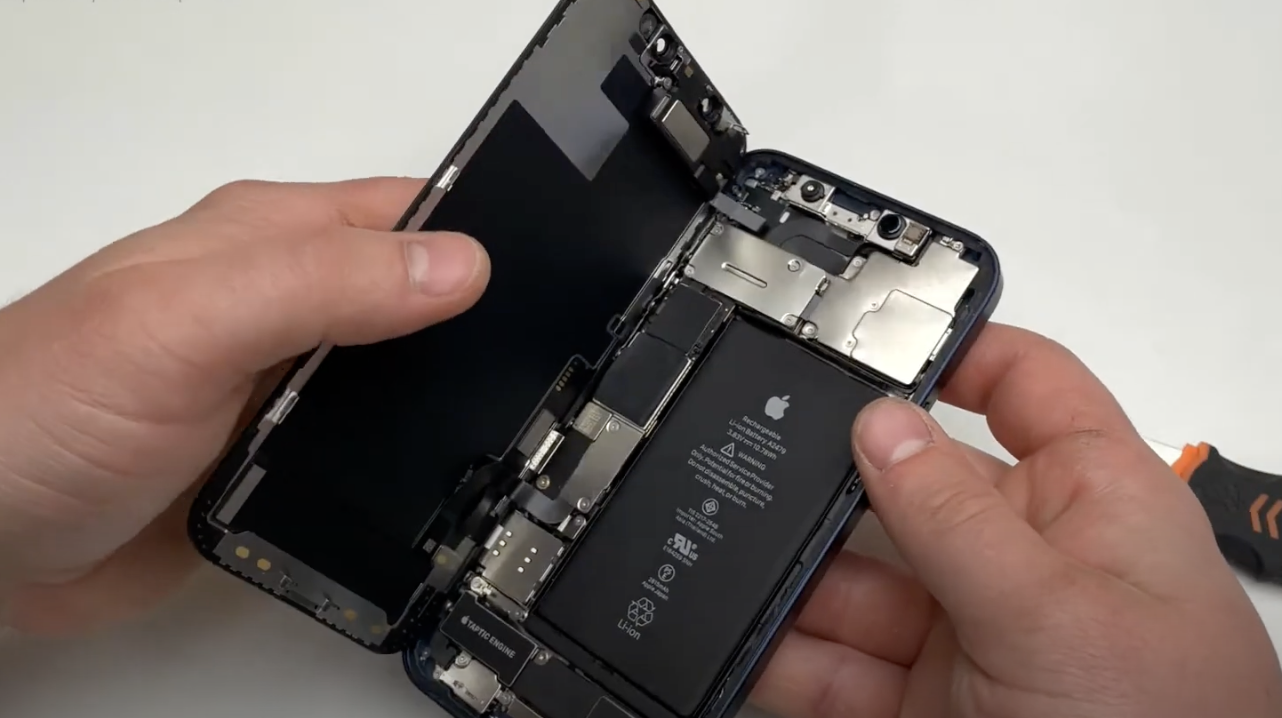
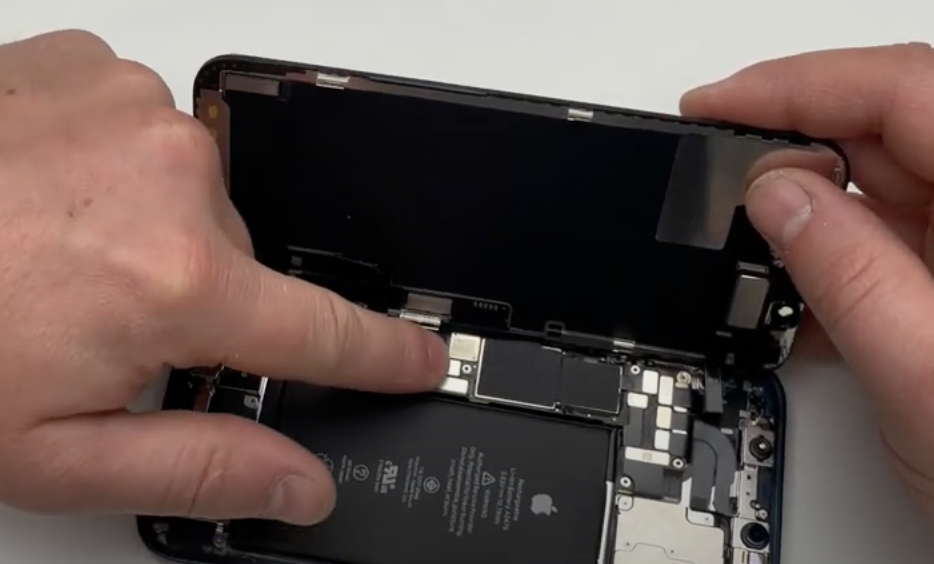
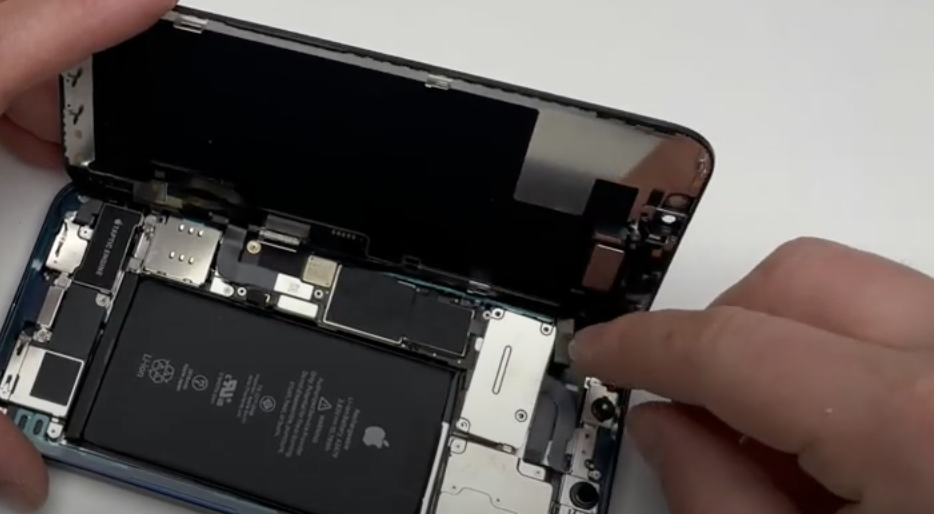
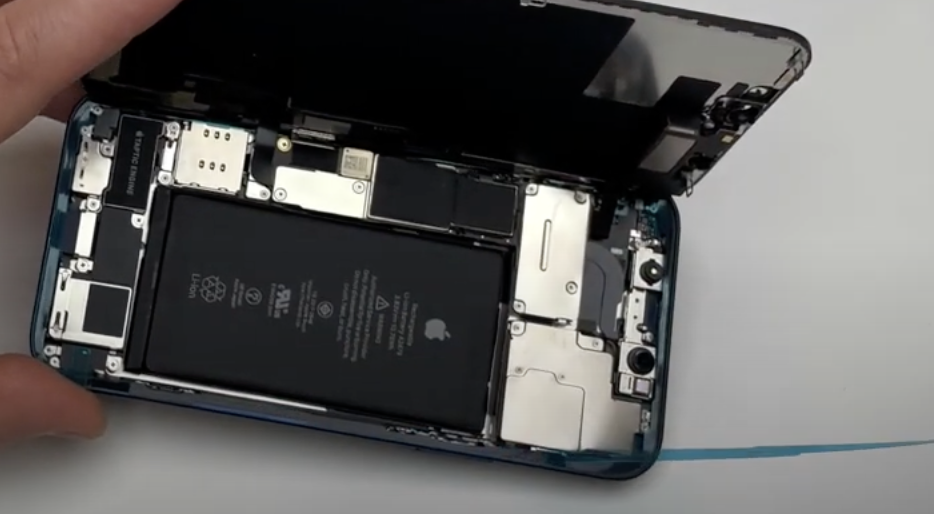
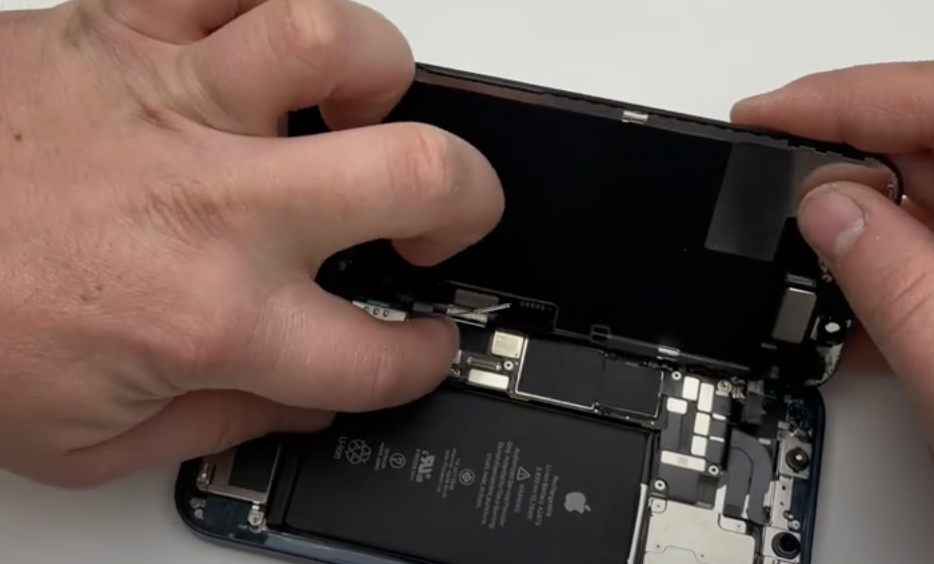
- Open the phone like a book to the left:

Be careful, as there are cables holding the screen on the left side. Handle with care to avoid damaging the cables.

Set the screws and plate aside*

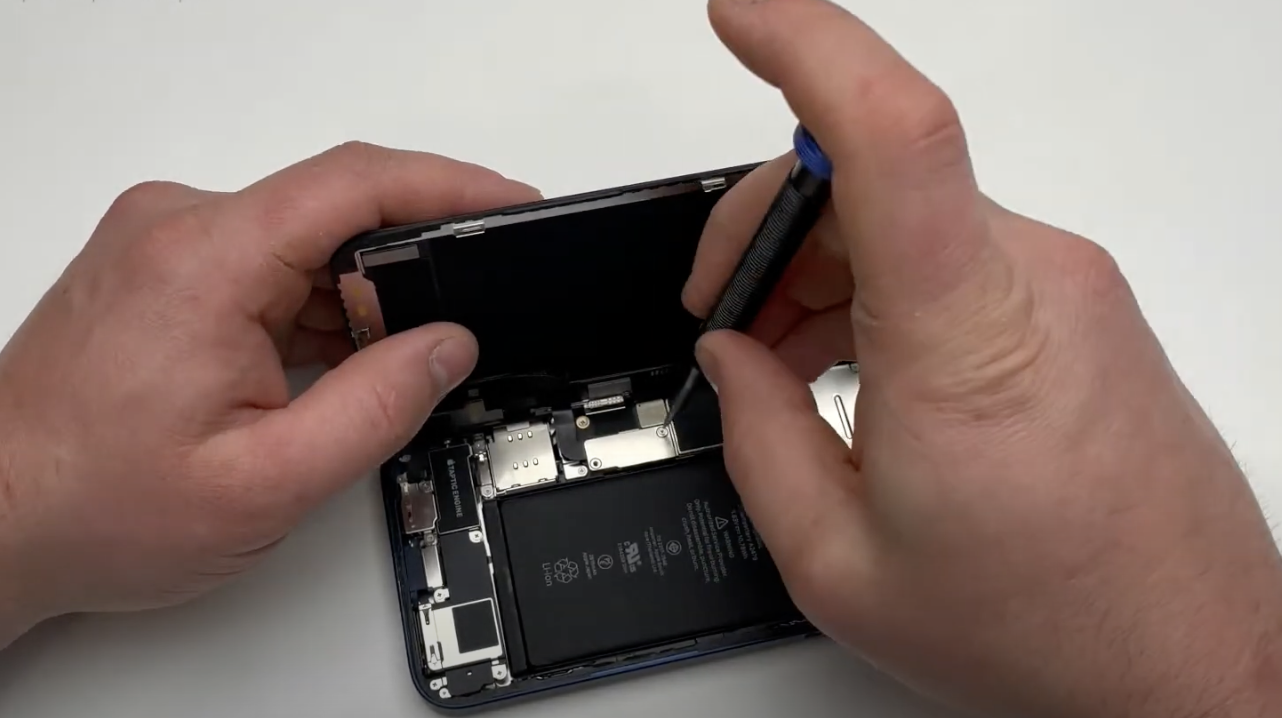
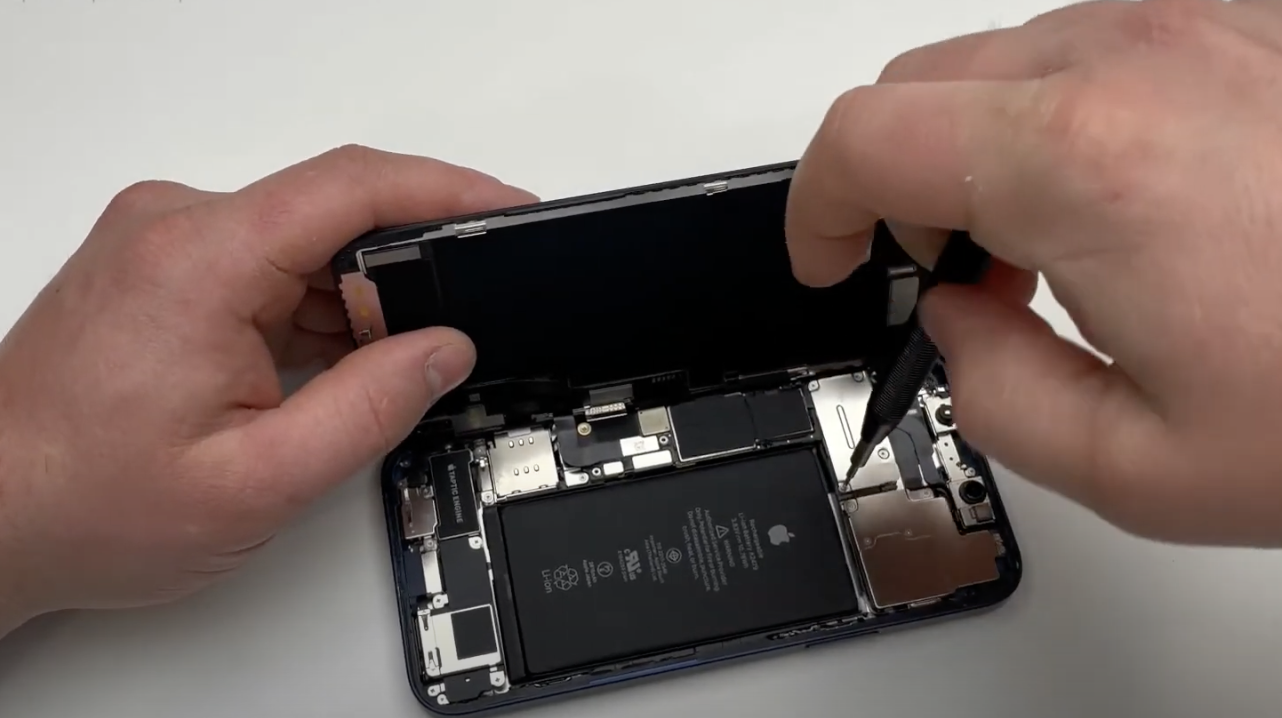
- Unscrew the two small metal plates:

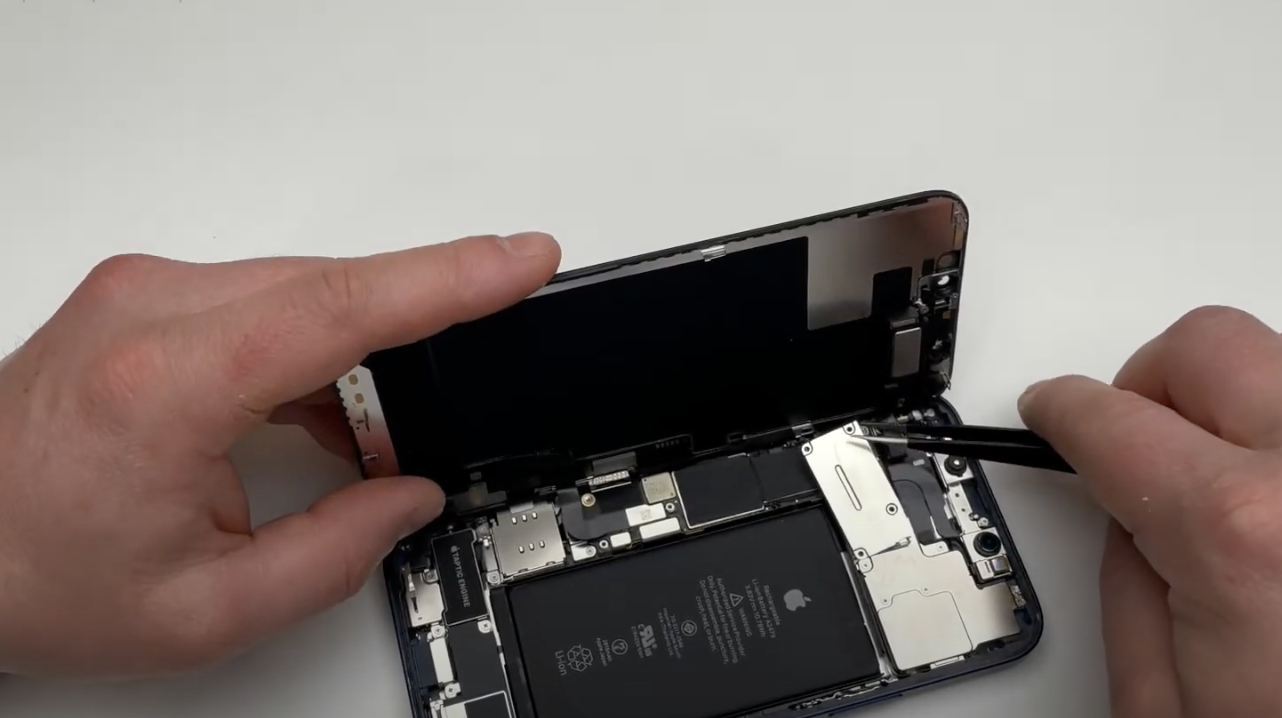
Using the triwing screwdriver, remove the screws from the first metal plate (to the left of the battery). Then remove the plate with a small pair of pliers.

Still using the triwing screwdriver, unscrew the second plate (top left of the battery). Then remove the plate with a small pair of pliers. Be careful, the plate has a small tab on the right to hold it in place. Be gentle when removing it so as not to damage it.

Set the screws and plate aside*.

*Be careful not to mix up the screws. Use a template to find their exact location when reassembling.

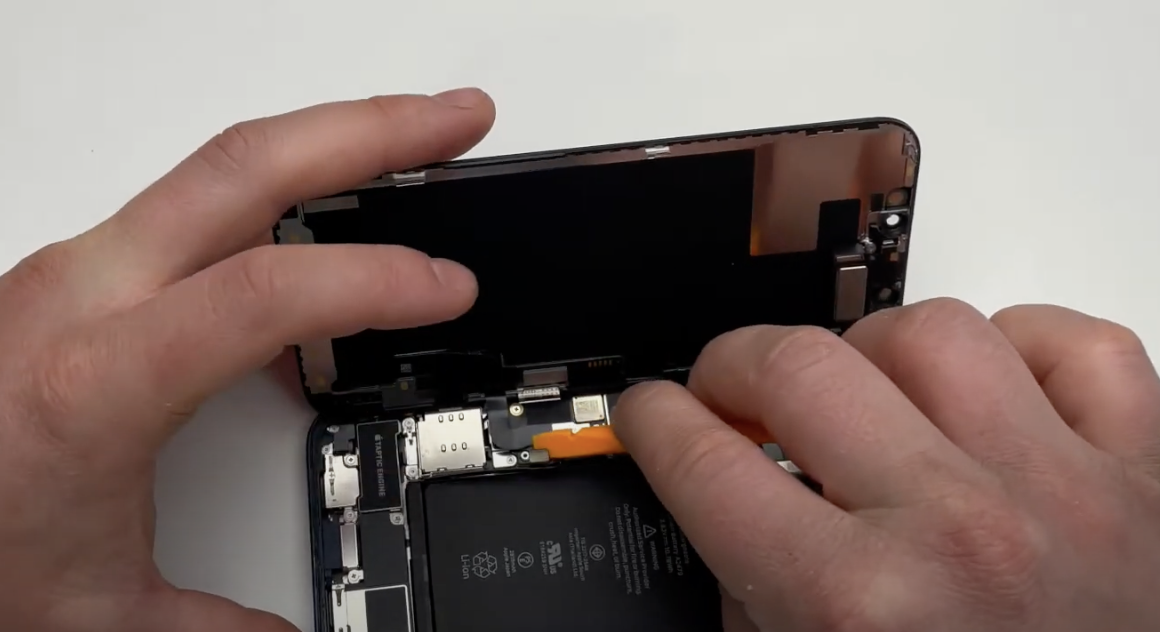
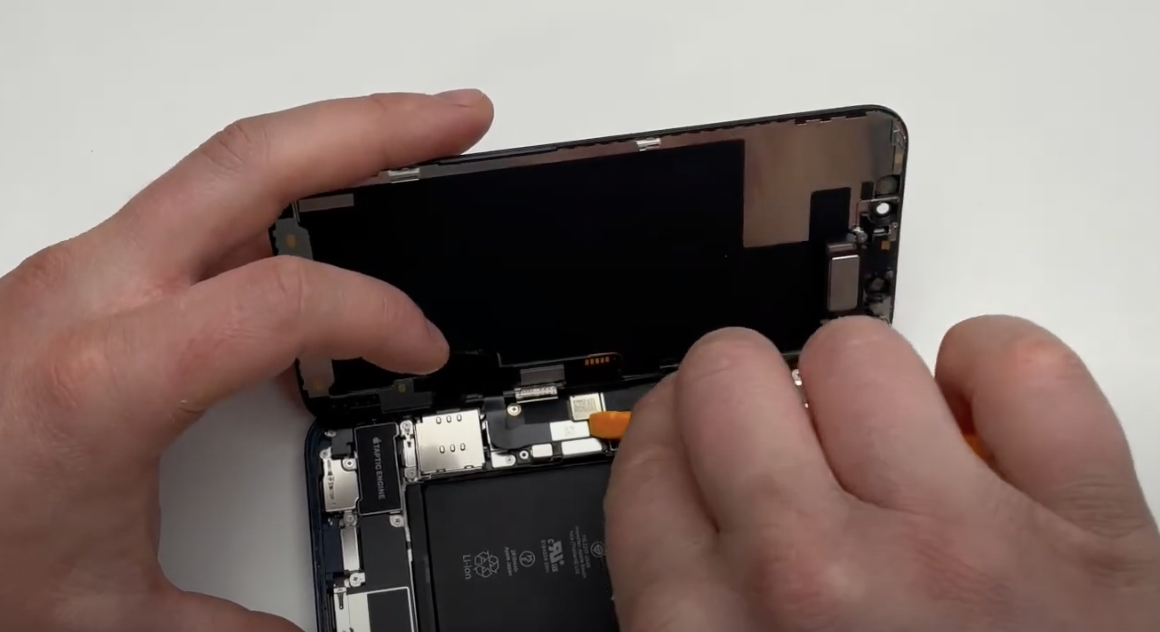
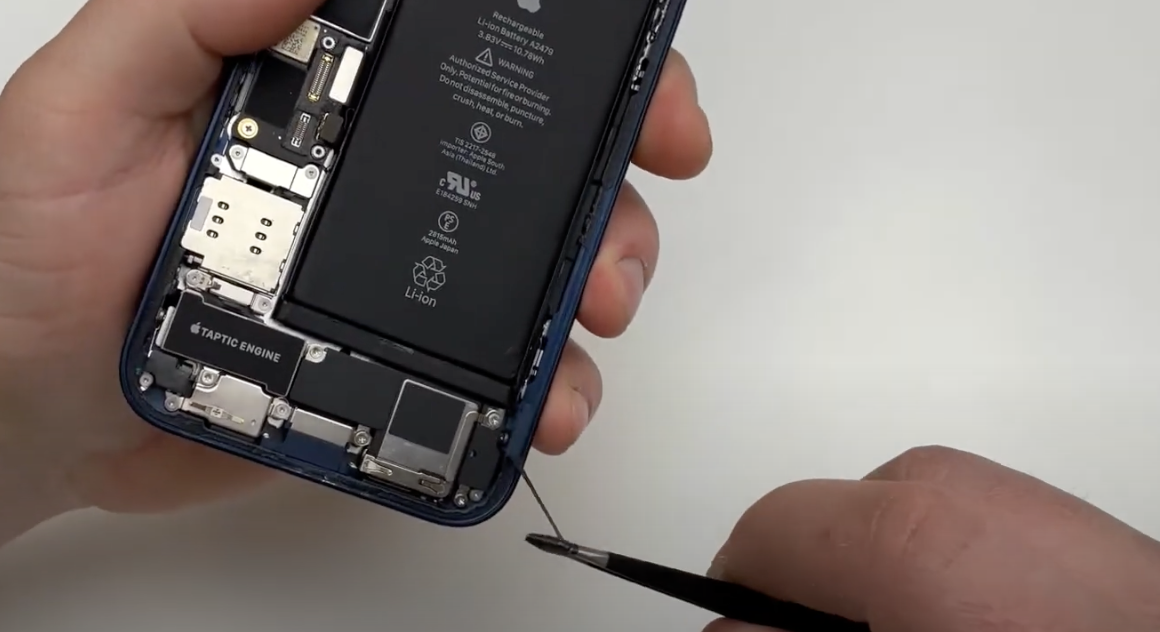
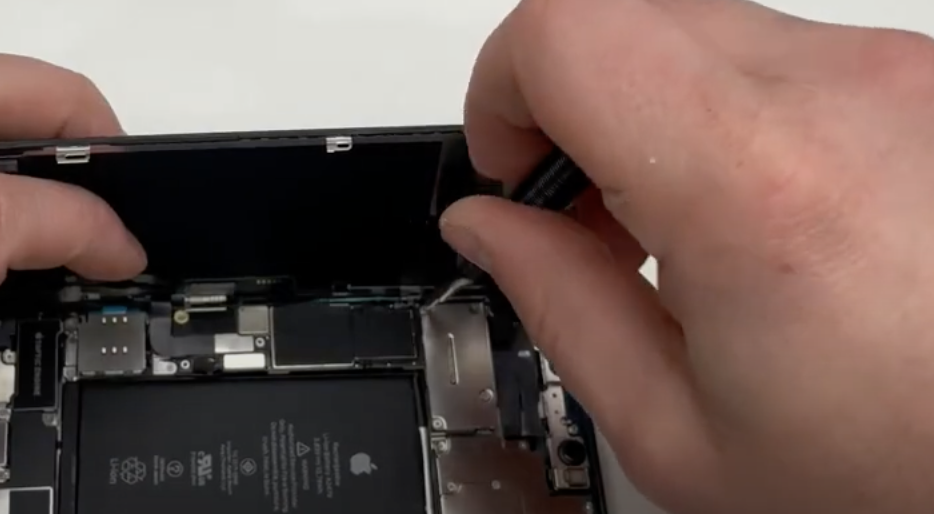
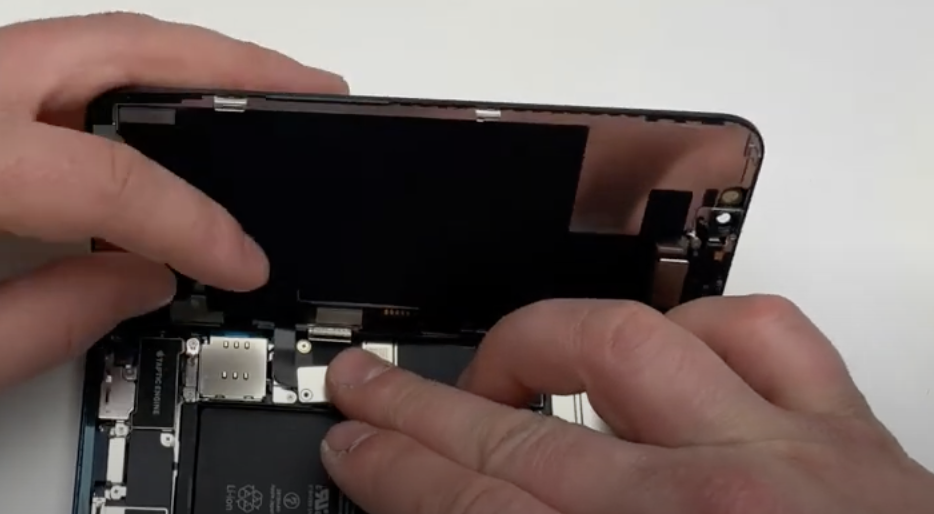
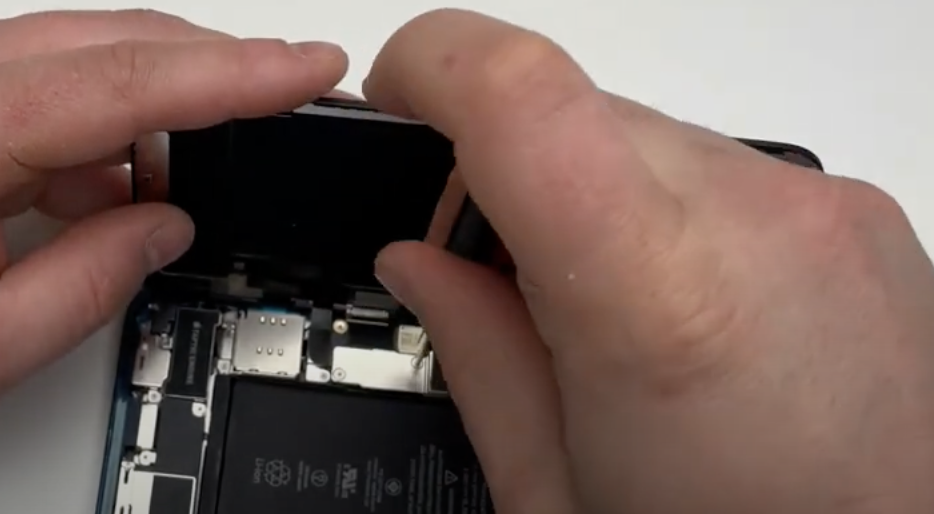
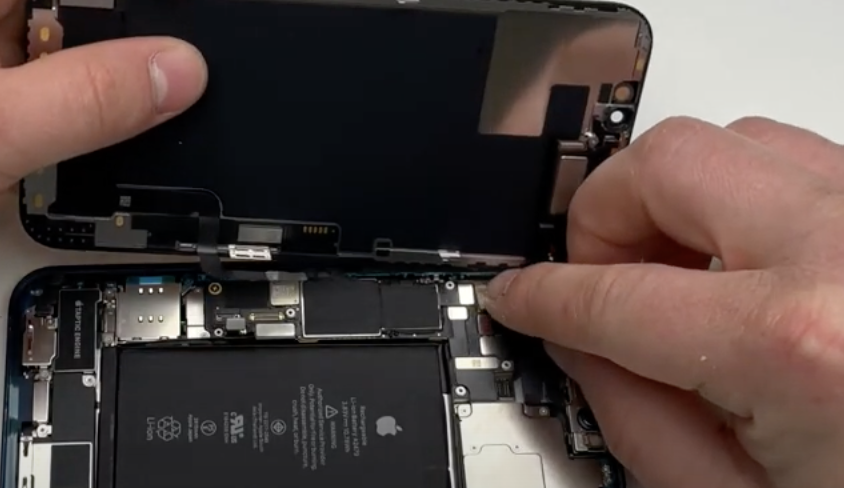
- Disconnect the cables to release the screen:

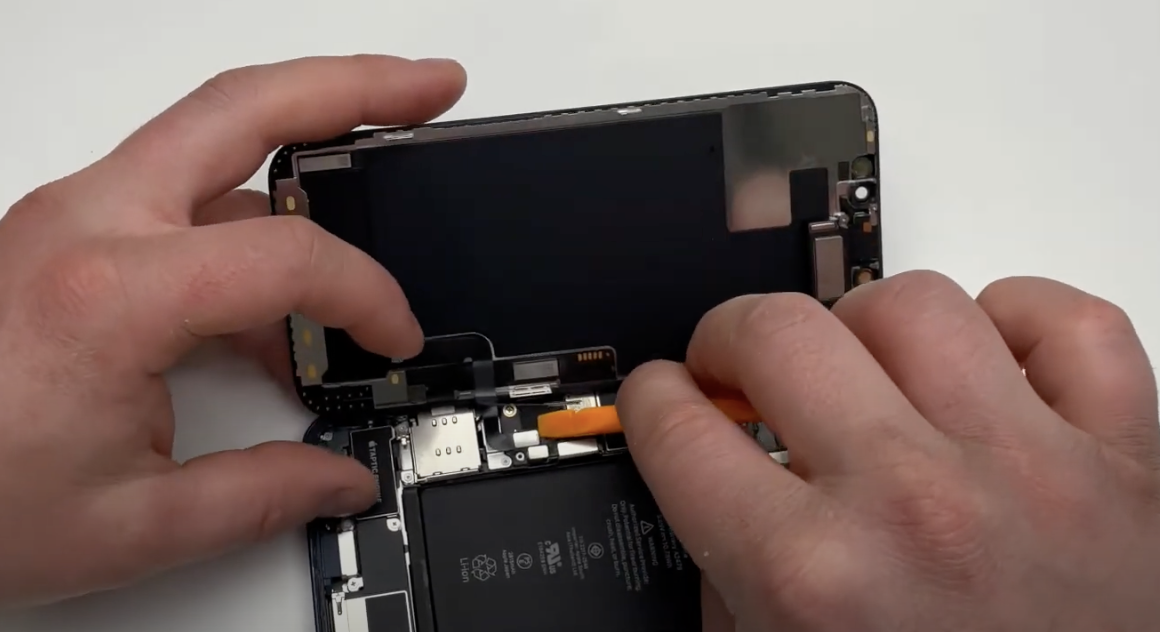
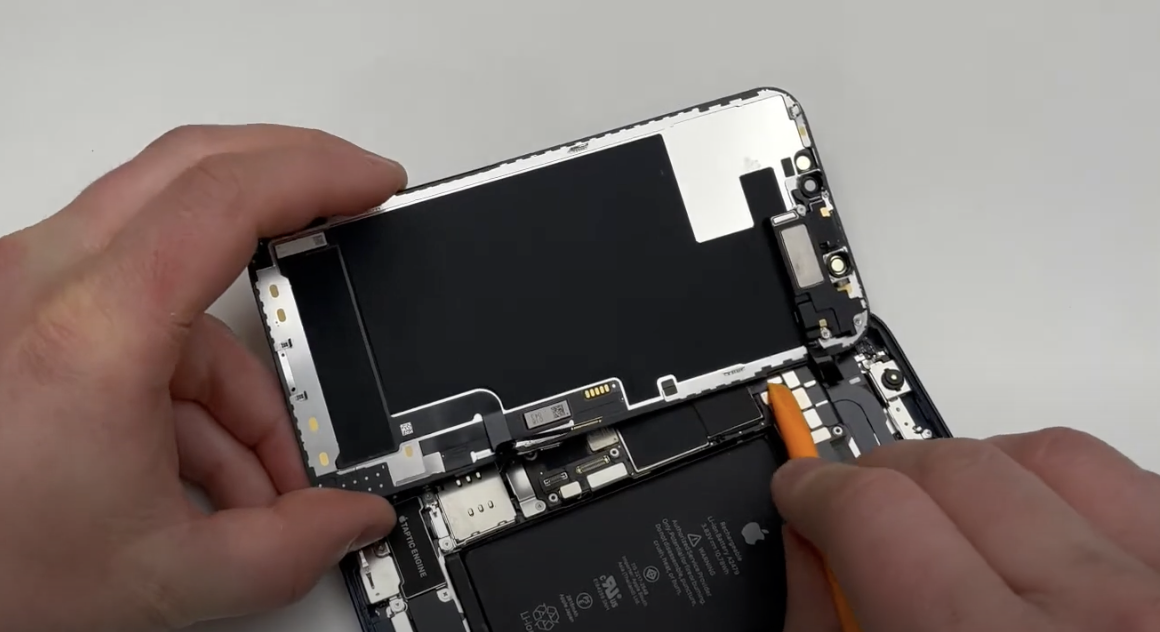
Three cables hold the screen attached to the rest of the phone. Use a plastic spatula to unclip them.

Before doing so, disconnect the battery cable (this is always the first cable to disconnect as soon as possible during a repair to avoid short circuits).

Right next to it are the 2 screen cables; disconnect them with the spatula.

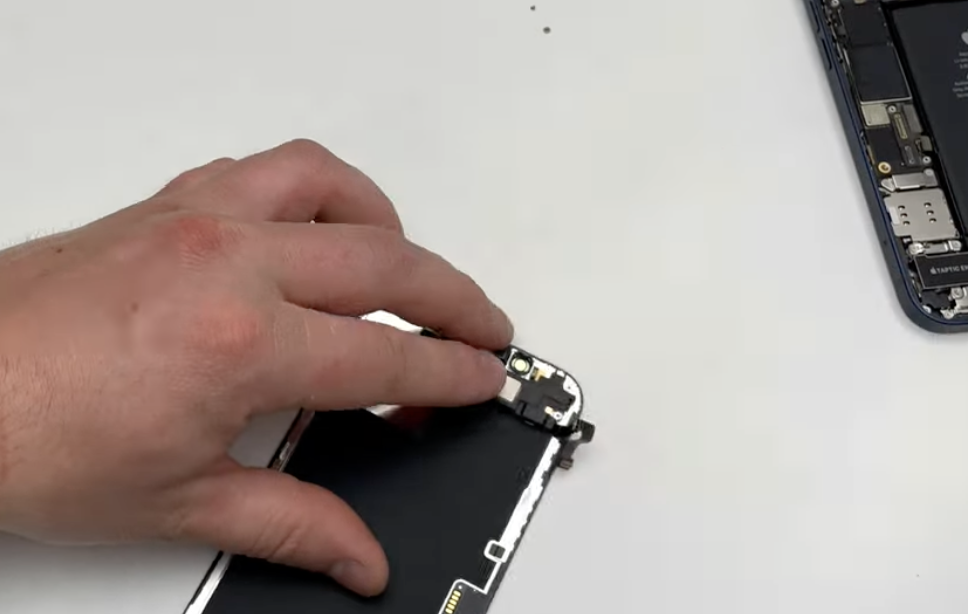
Finally, disconnect the last one at the top, which is for the speaker/proximity sensor.

The screen is now detached from the phone. 

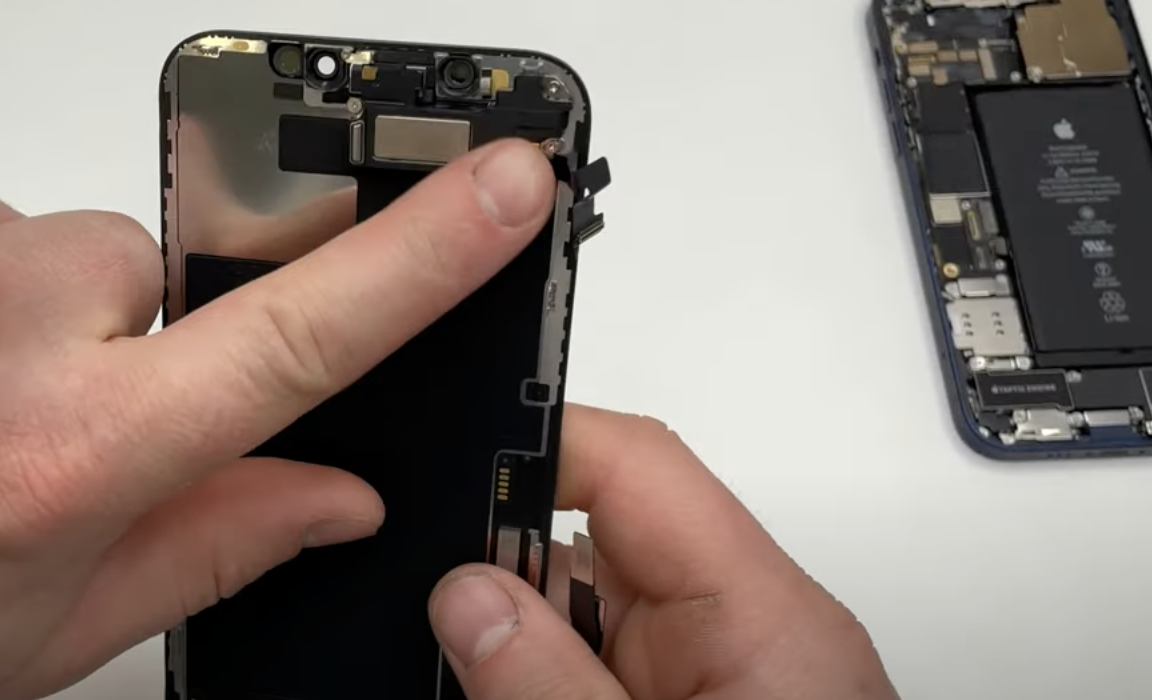
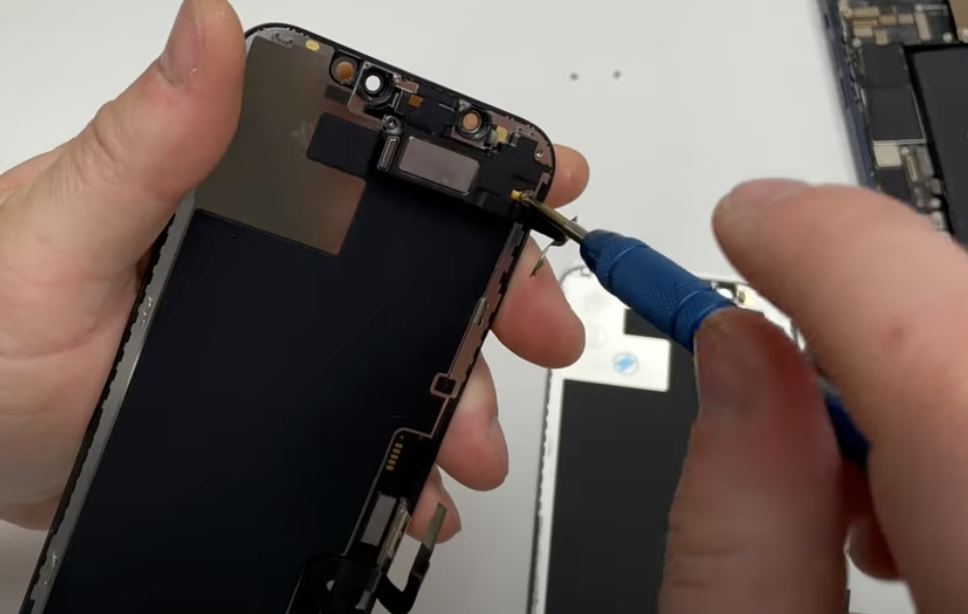
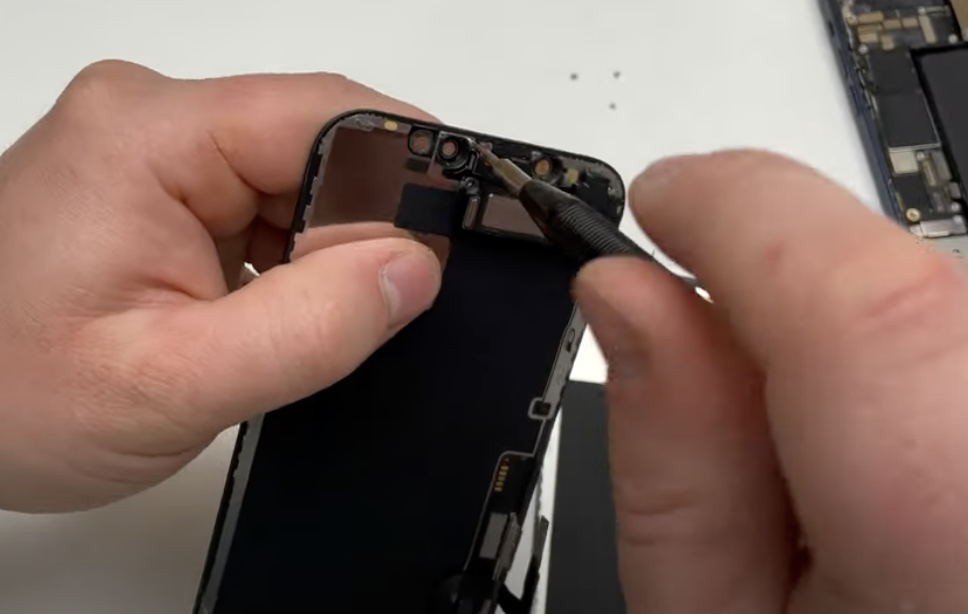
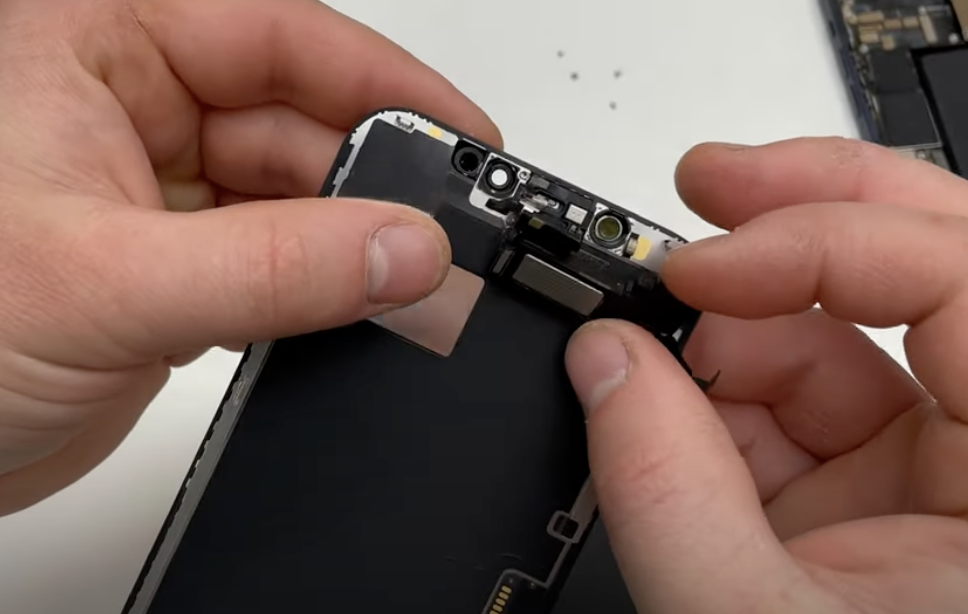
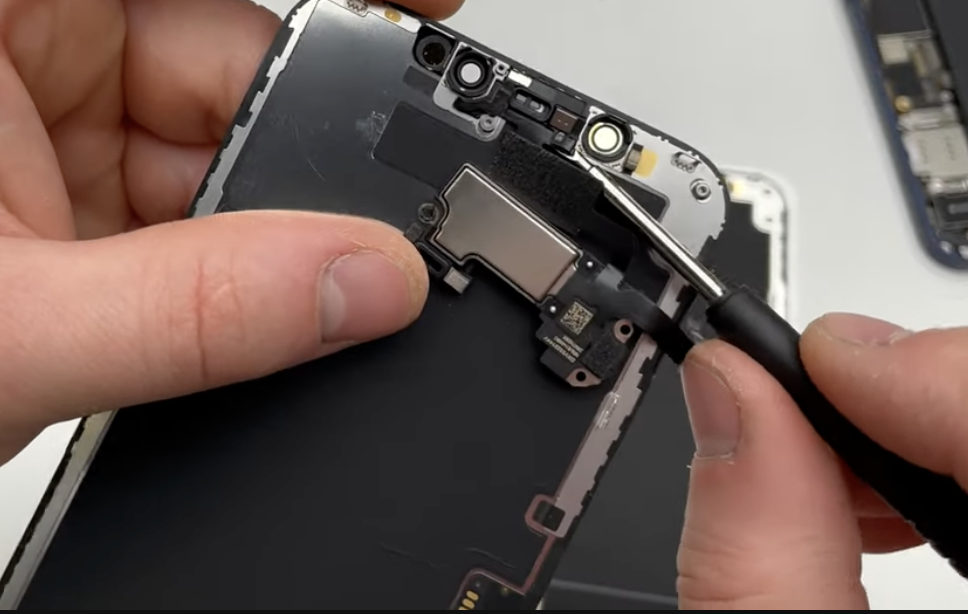
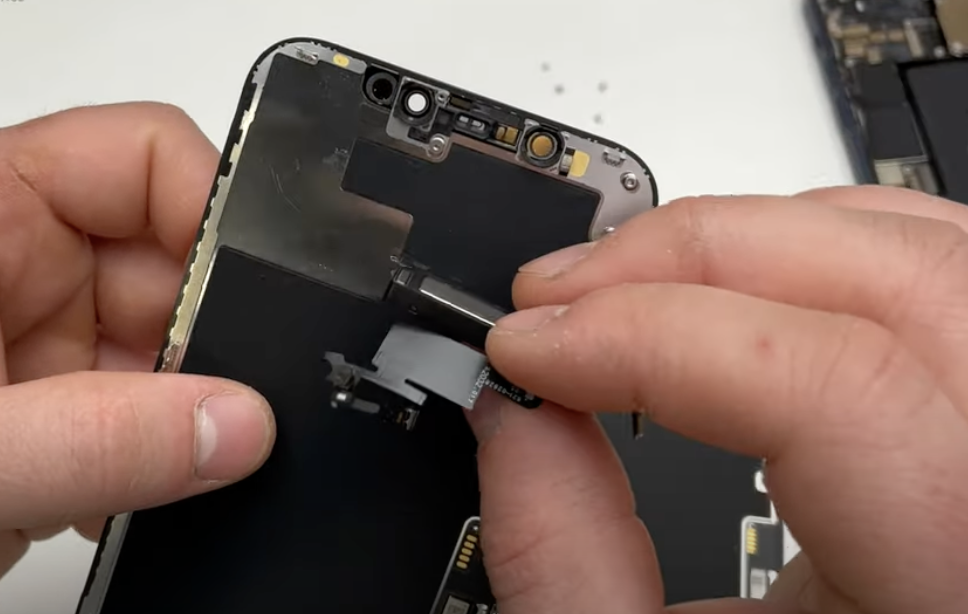
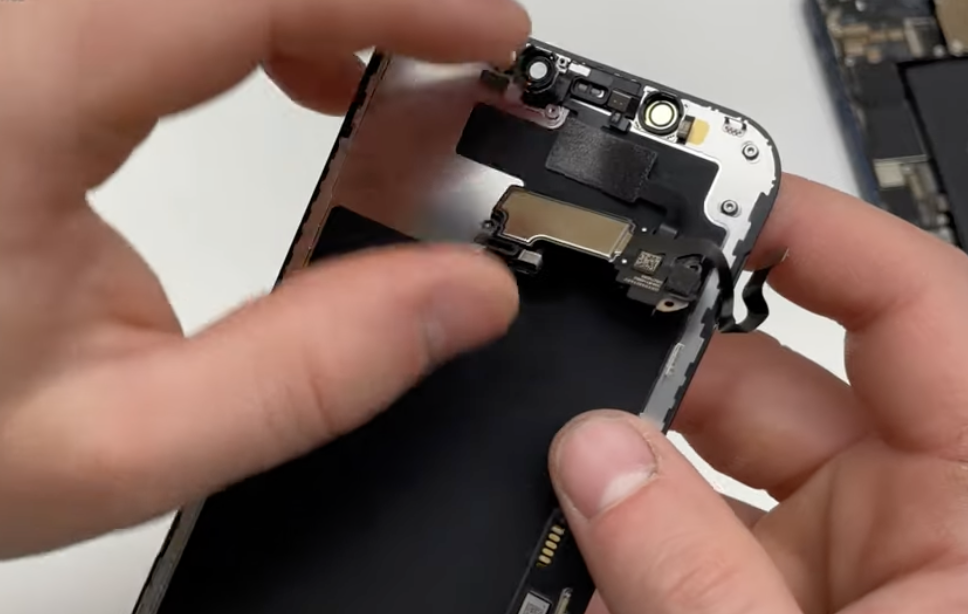
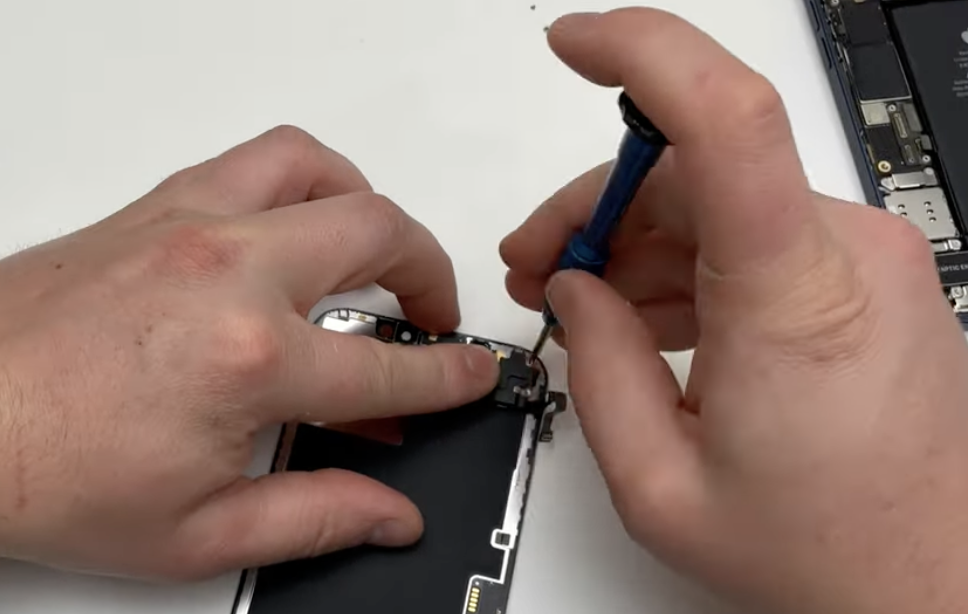
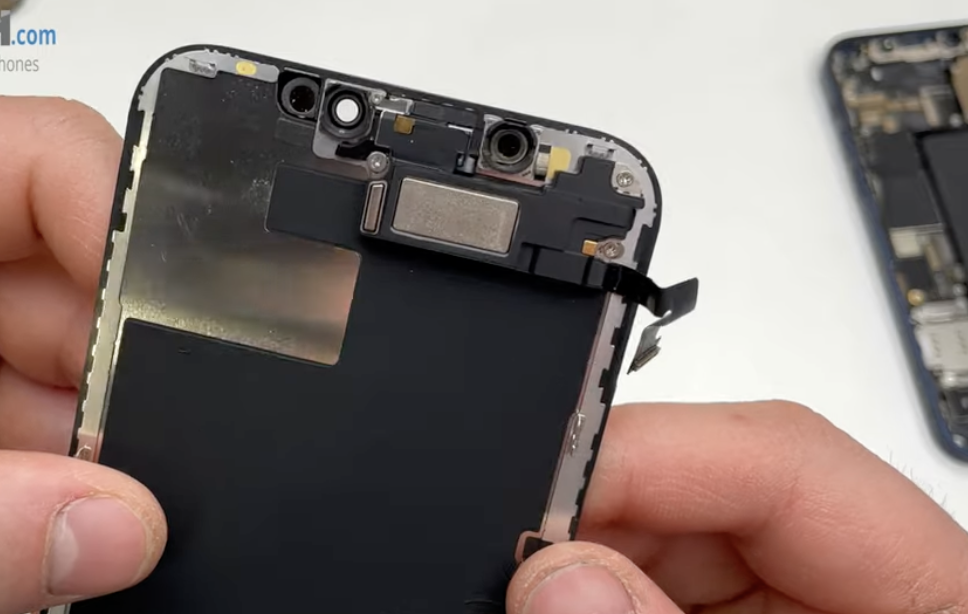
- Remove the speaker/proximity sensor:

Take the white screwdriver and remove the three screws holding the part in place. Set them aside.

Using a flat screwdriver, carefully peel off the adhesive parts of the component. 

Remove the part.

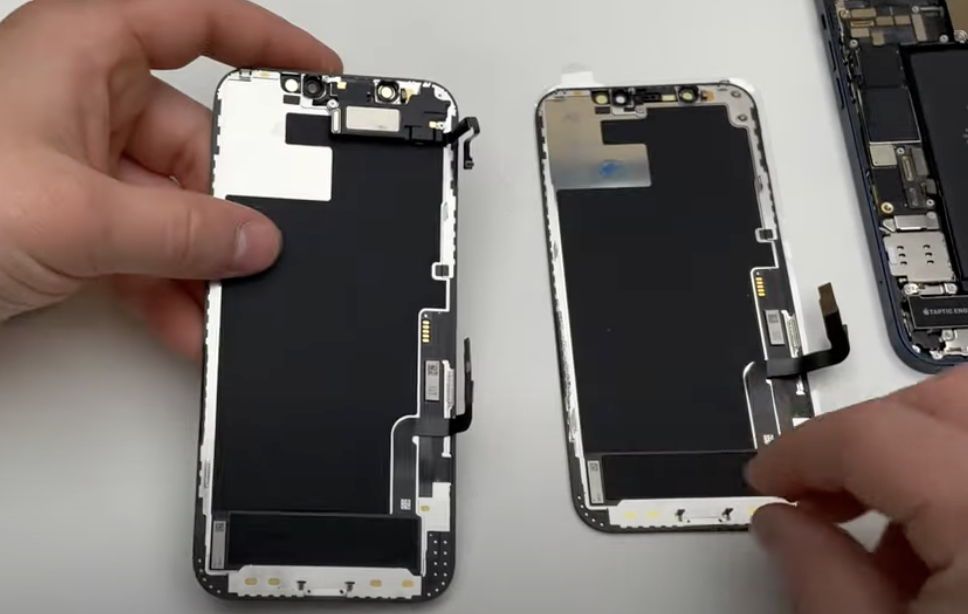
Then take the new screen.

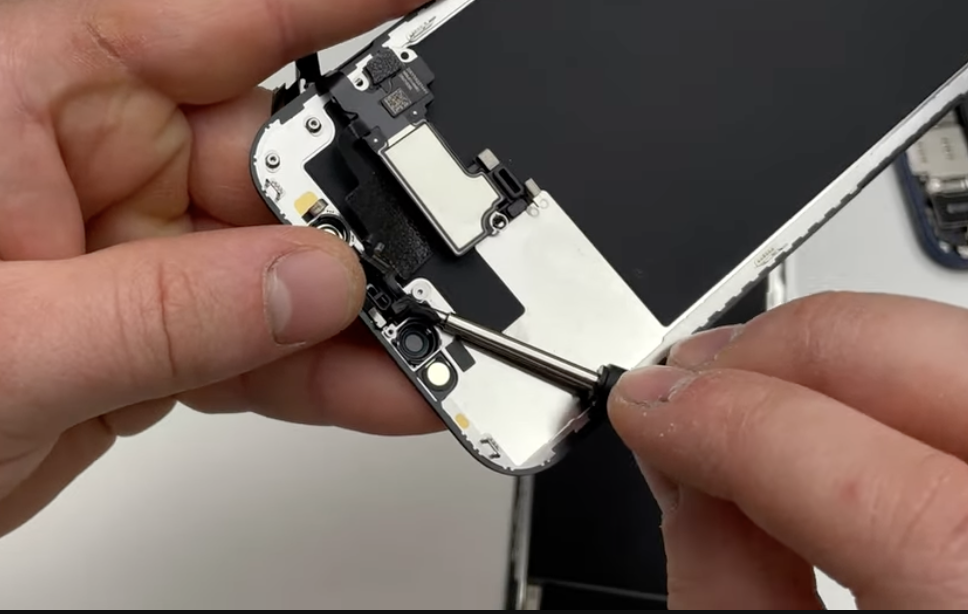
- Replace the speaker/proximity sensor on the new screen:

Replace the adhesive parts of the component as they were installed on the old screen.

Then fold the sensor upwards, take the screws and screw them back in.

- Remove the old adhesive seal:

Before replacing the adhesive seal, remove the old one. Using a flat screwdriver or small pliers, scrape the seal until the frame is clean.

Be careful not to damage the surrounding parts with the tool you are using.

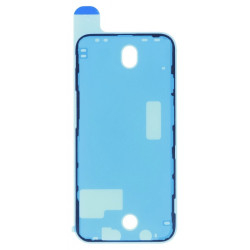
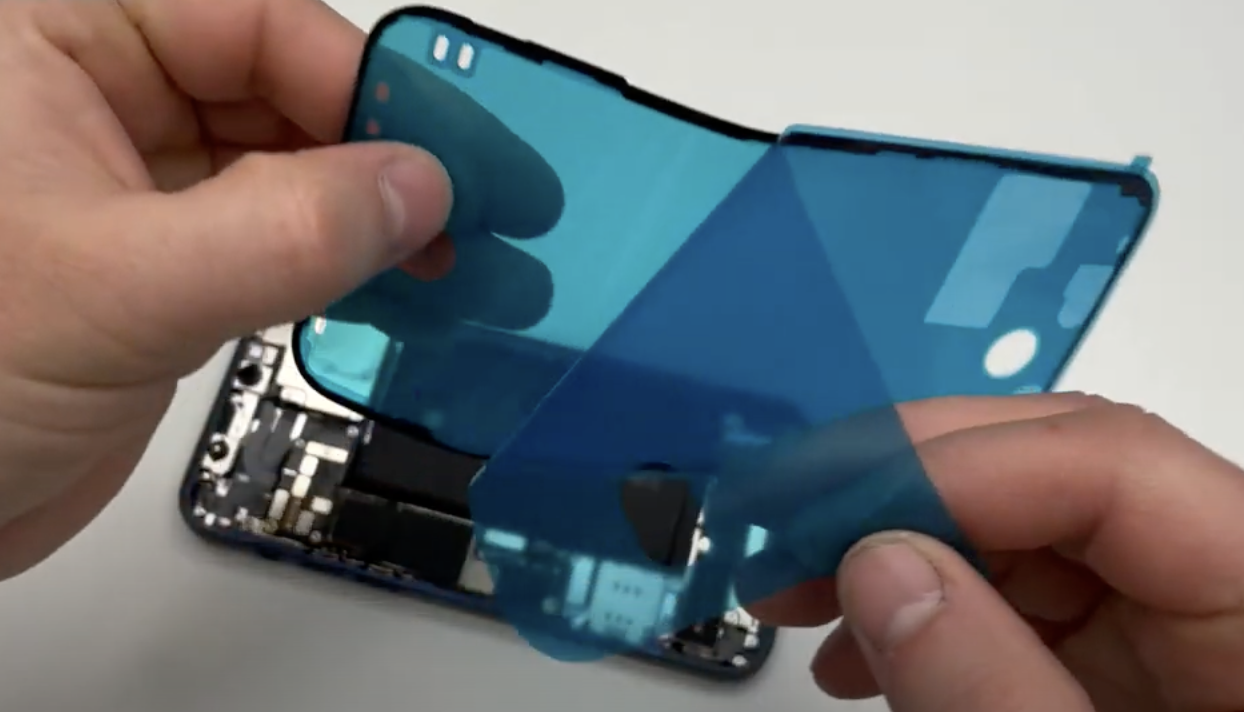
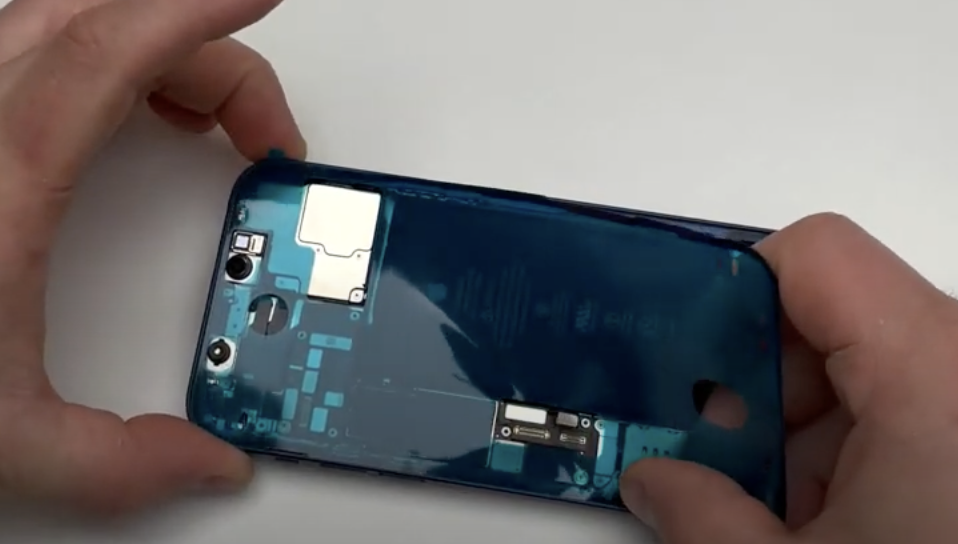
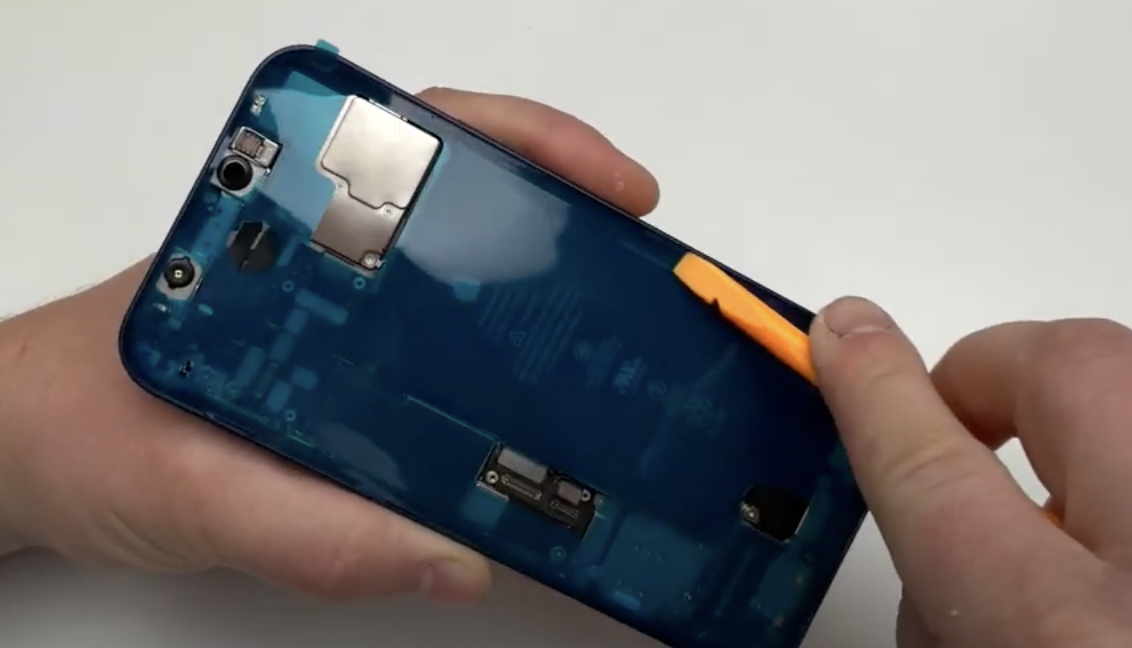
- Replace the new adhesive seal:

Take the new seal. Remove the first protective layer.

Place the seal on the frame using the markings as a guide. Once in place, use a spatula to press down on the edges so that the seal adheres to the frame.

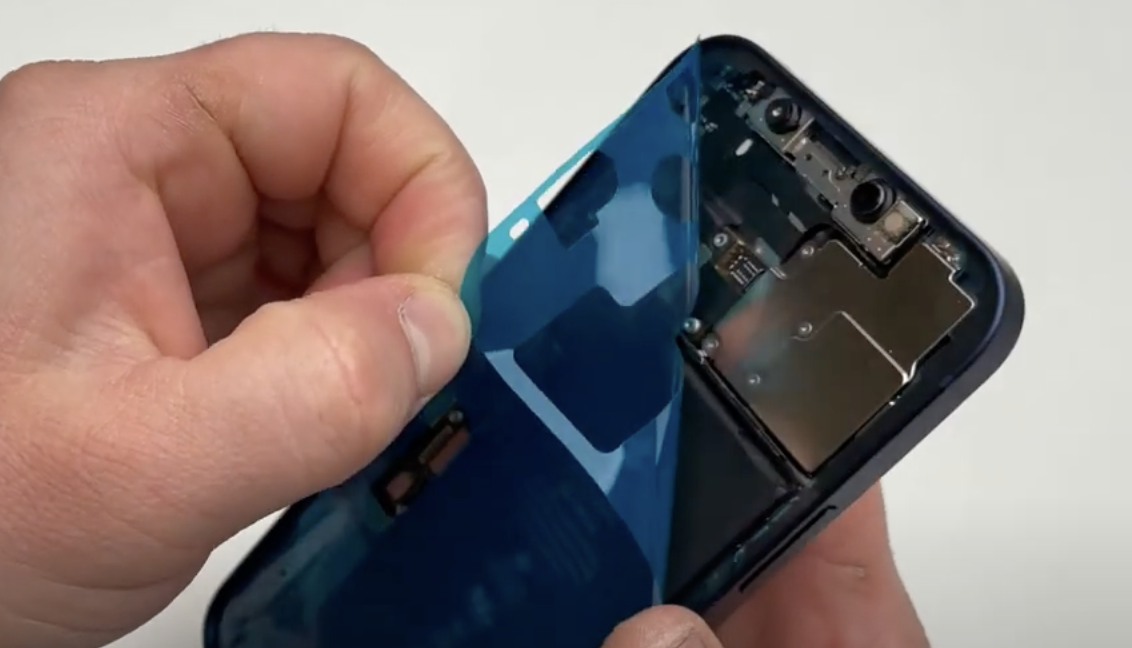
Carefully remove the second protective layer.

There is still a protective layer just above the seal. Leave it there for now.

- Replace the new screen and reconnect the cables:

Reconnect the speaker/proximity sensor ribbon cable at the top.

Reconnect the two screen ribbon cables at the bottom, to the left of the battery.

Finally, reconnect the battery ribbon cable.

- Replace the two metal plates and screw them back in place:

Replace the metal plate at the top and bottom and screw the two plates back on.

Be careful to use the correct screws, otherwise you may damage the iPhone.

- Remove the last protective cover from the seal:

Using small pliers, remove the small blue protective cover from the seal. Please note that it consists of three parts.

- Close the screen on the frame:

Close the screen as you would close a book, from left to right, to avoid damaging the cables.

Hold the iPhone in both hands and press down from top to bottom to clip the screen back onto the frame.

- Screw the two screws back into the charging port:

Take the two screws that were on either side of the charging port and screw them back in.

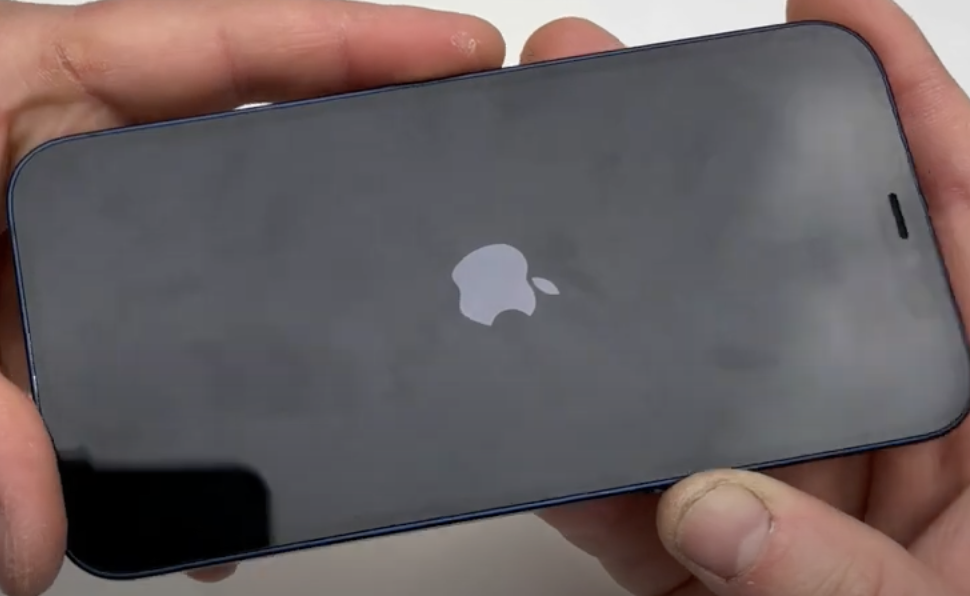
You can now turn your iPhone back on.

The repair is complete.

More articles

VISIT OUR BLOG
Advice
IPhone screen: understanding Hz and ProMotion

IPhone screen: understanding Hz and ProMotion

60 Hz, 90 Hz, 120 Hz, ProMotion: find out how the display frequency of an iPhone screen works,...

2025-11-28
Advice
What quality iPhone screen should I choose? TFT, INCELL, OLED, original

What quality iPhone screen should I choose? TFT, INCELL, OLED, original

TFT, INCELL, LTPS, hard and soft OLED, Service Pack, refurbished or pulled: find out which iPhone...

2025-11-26
News
OnePlus 13: Features and Release Date

OnePlus 13: Features and Release Date

OnePlus 13: Discover its features, innovations and expected release date. Everything you need to...

2025-03-04