Orders are dispatched the same day if placed before 3pm (Monday to Friday). Find out more

In this tutorial, we will explain step by step how to replace the screen on your Samsung Galaxy S22. Find the video tutorial on our YouTube channel!
Required equipment

- Screen protector compatible with the Samsung S22 

- Phillips screwdriver 

- Plastic spatula

- Metal opener or mediator

- Flexible card

- Heat gun 

The tool kit is free with any purchase of a screen or battery on our website (excluding heat gun).


Repair time: 30 minutes

Repair difficulty: Medium

Repair steps

Switch off the phone:

Ensure that the phone is completely switched off before beginning the process.

Remove the SIM card tray:

Use the SIM card eject tool to remove the tray. Set it aside.


Remove the rear glass panel:

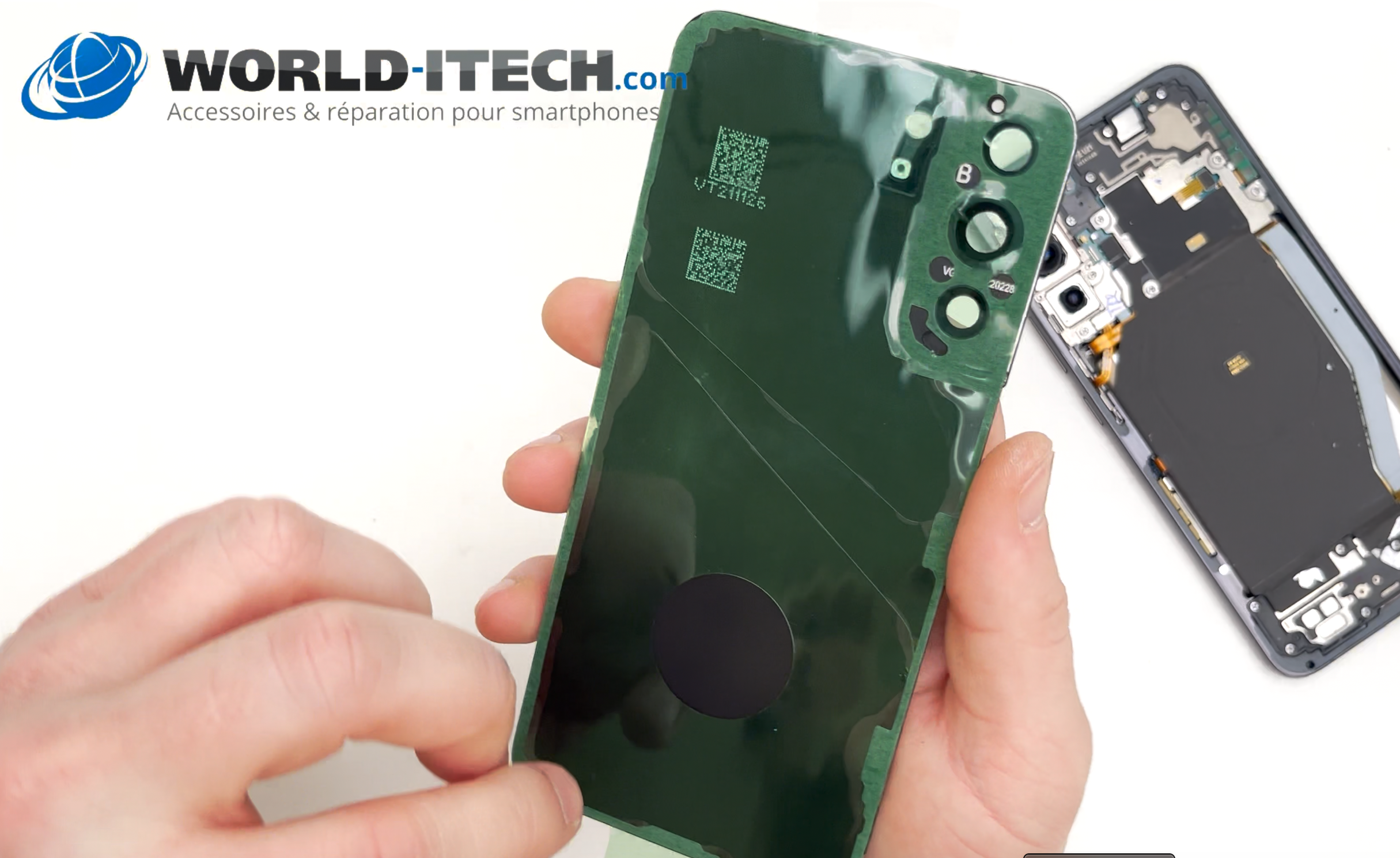
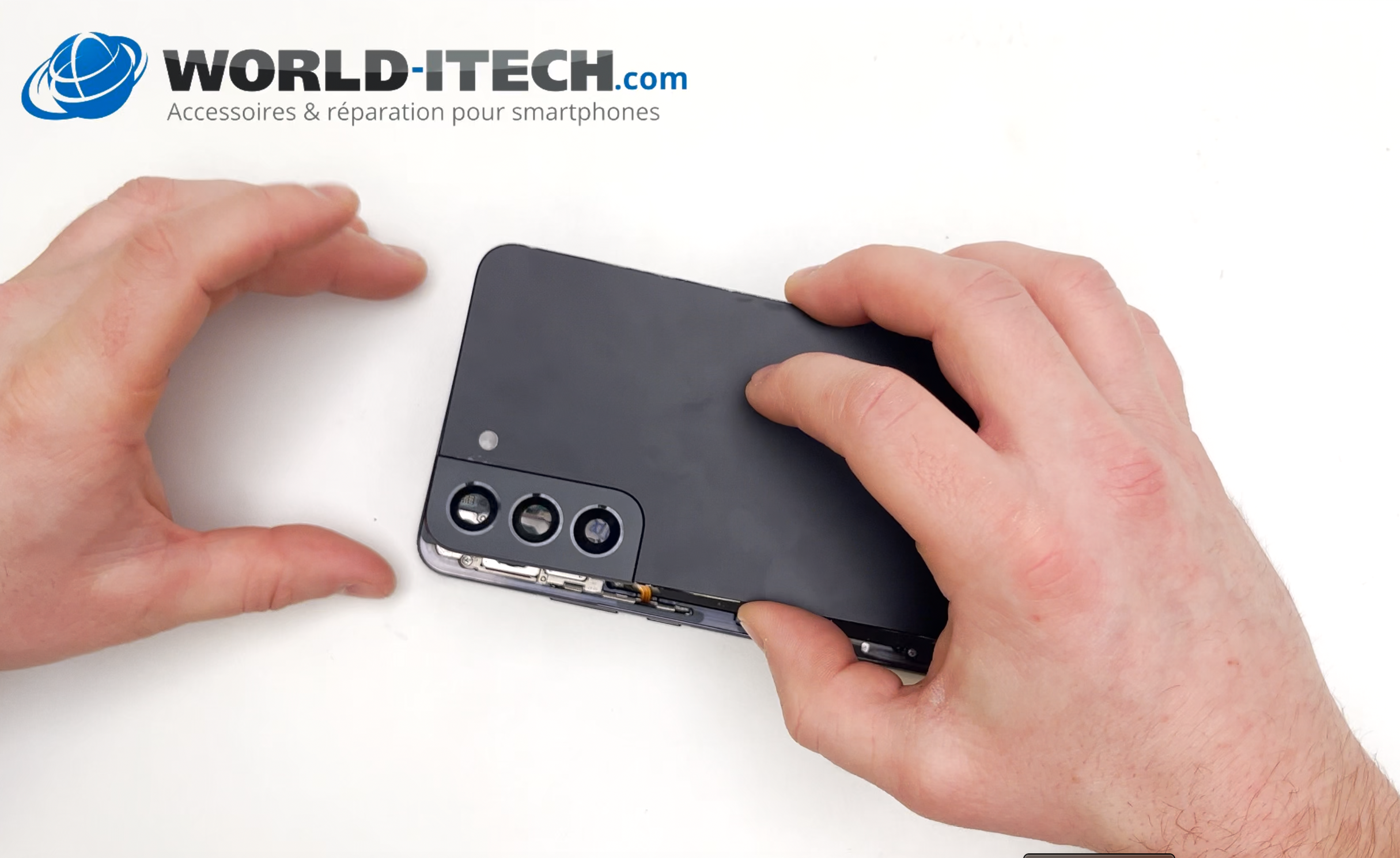
Take the heat gun and heat the edges of the back of the phone. This will soften the adhesive seal and make it easier to remove the glass.

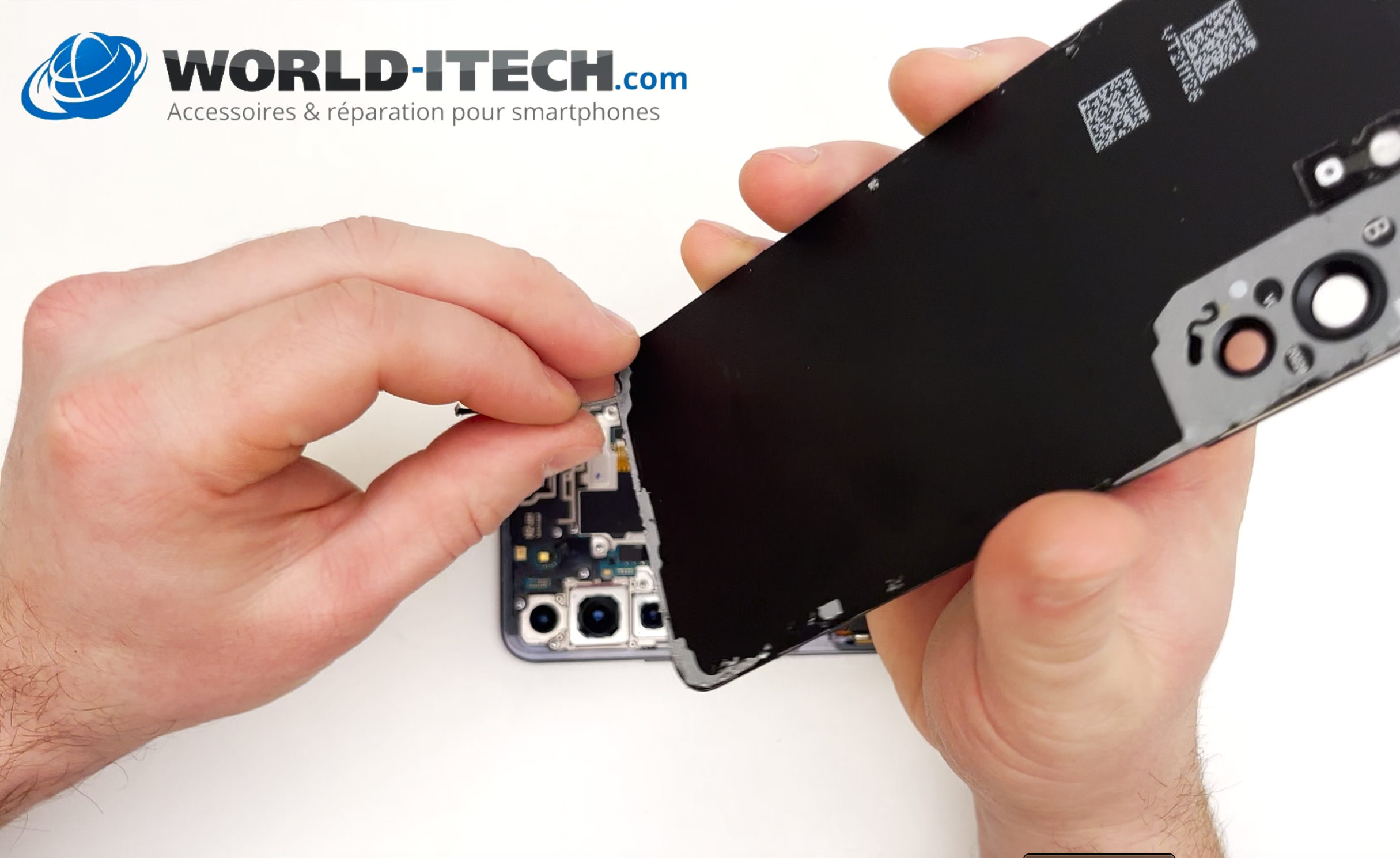
Using the metal pick or an opener, create a gap between the frame and the rear glass panel. Once the tool is inserted, take the flexible card and slide it into the gap, then remove the pick/opener. Next, slide the card around the phone to detach the glass panel from the frame.

Set the glass aside.

Remove the screws: 

Use the Phillips screwdriver to remove all the screws from the casing. Set them aside.

Remove the induction charging cable:

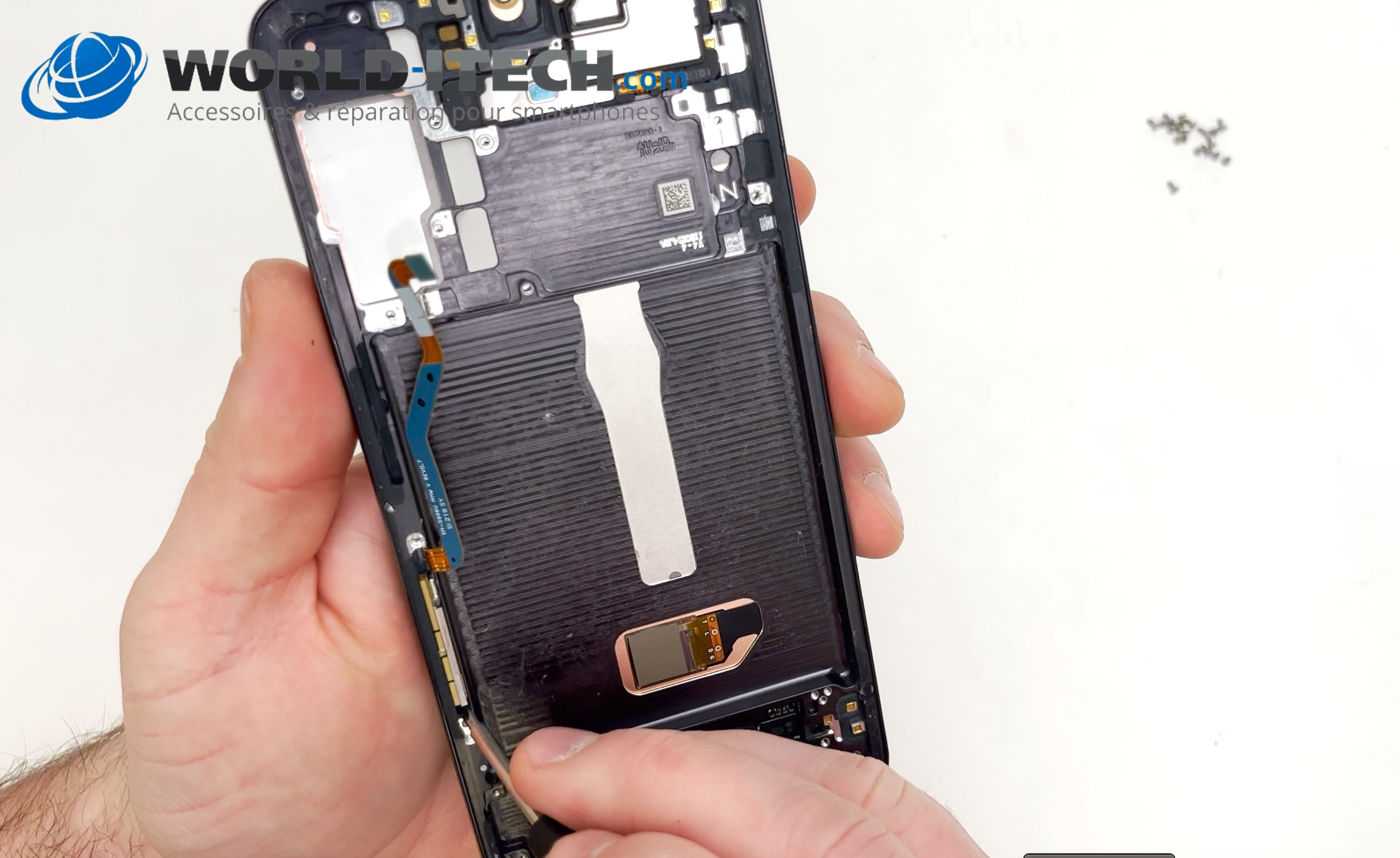
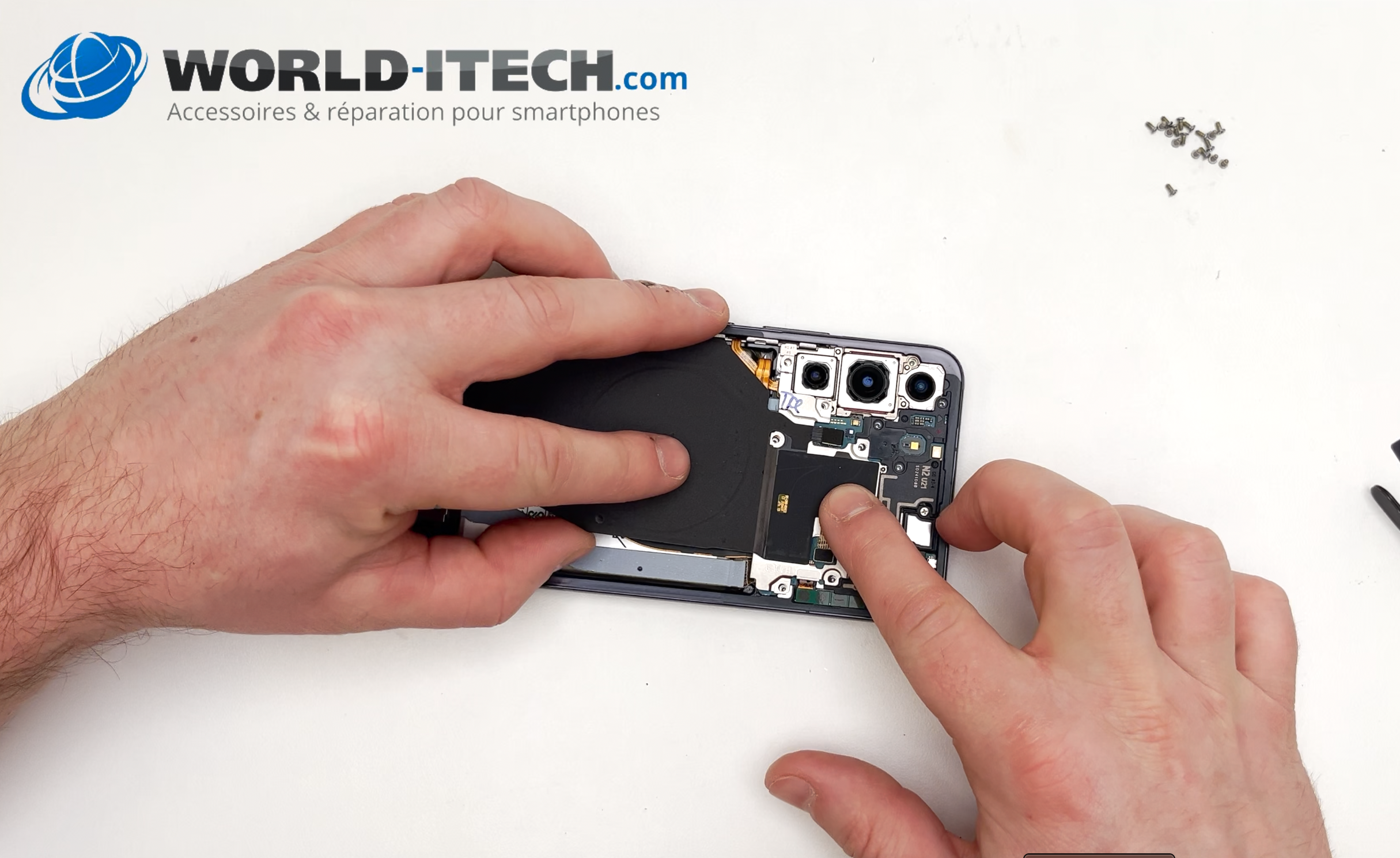
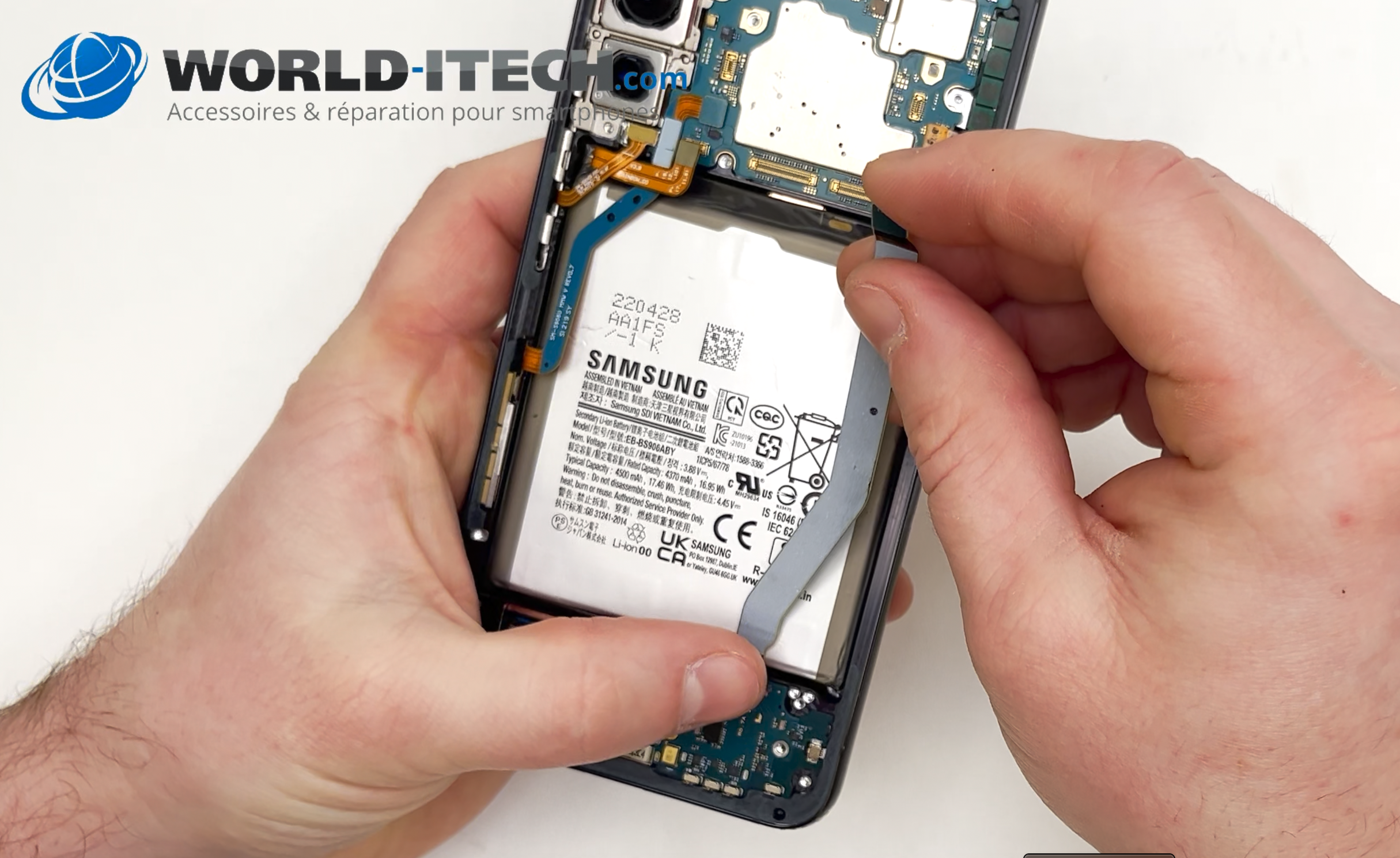
Disconnect the ribbon cable in the centre using a spatula. Still using the spatula, lift the metal part of the ribbon cable, then carefully peel off the bottom of the ribbon cable. Set it aside.

Disconnect the battery ribbon cable: 

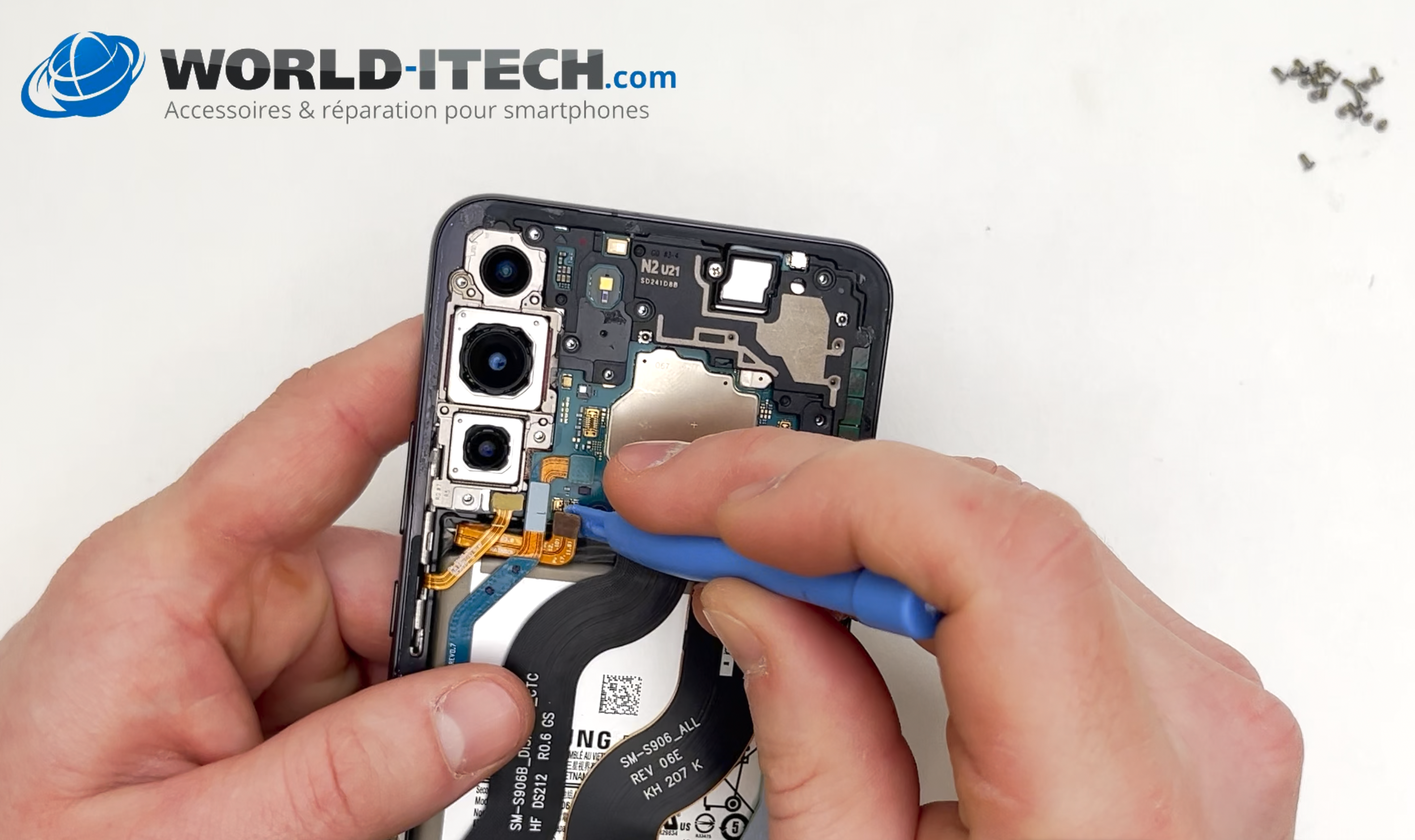
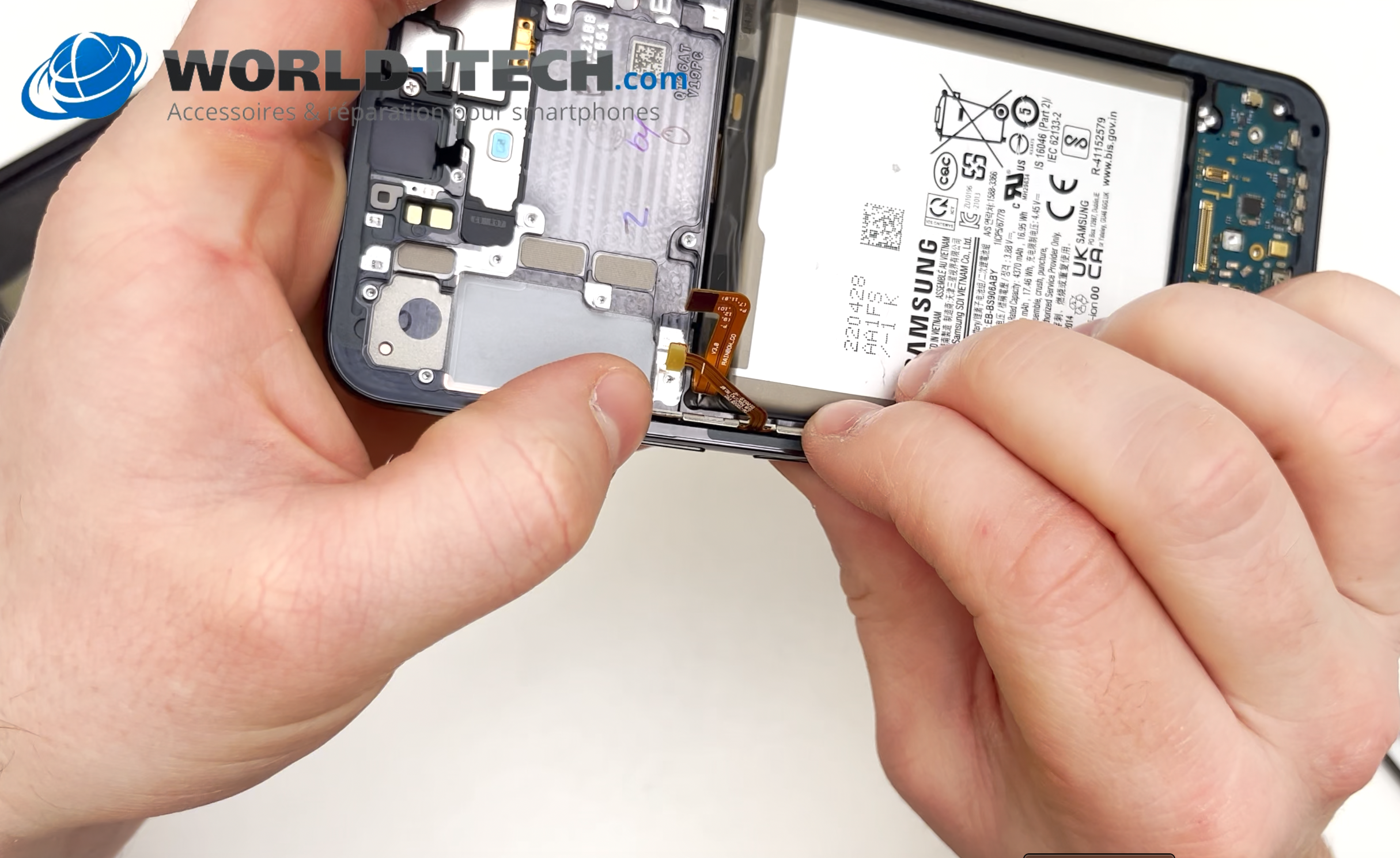
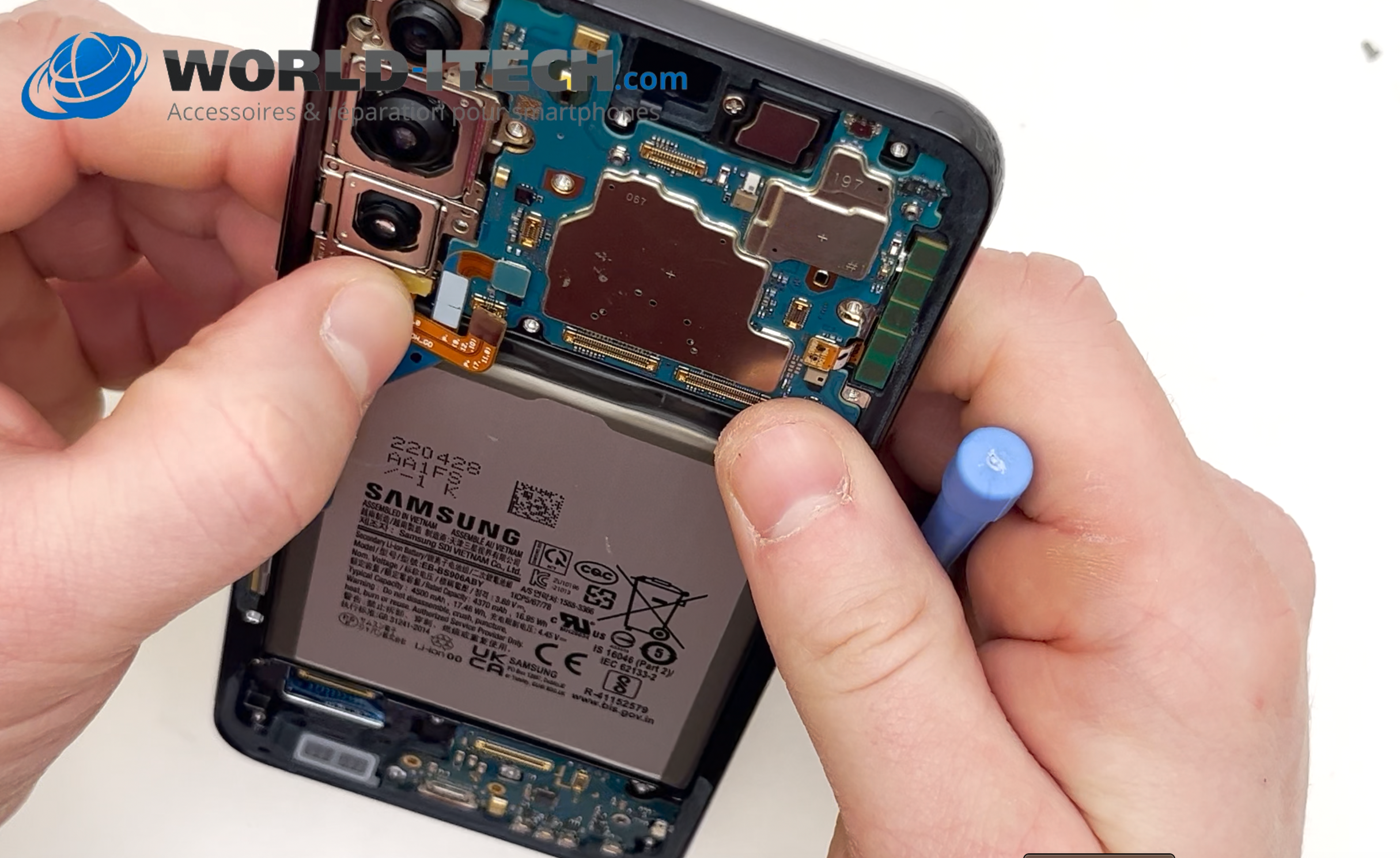
Take the plastic spatula and disconnect the battery ribbon cable. This is the orange ribbon cable at the top left of the battery.

Disconnect the antenna cable:

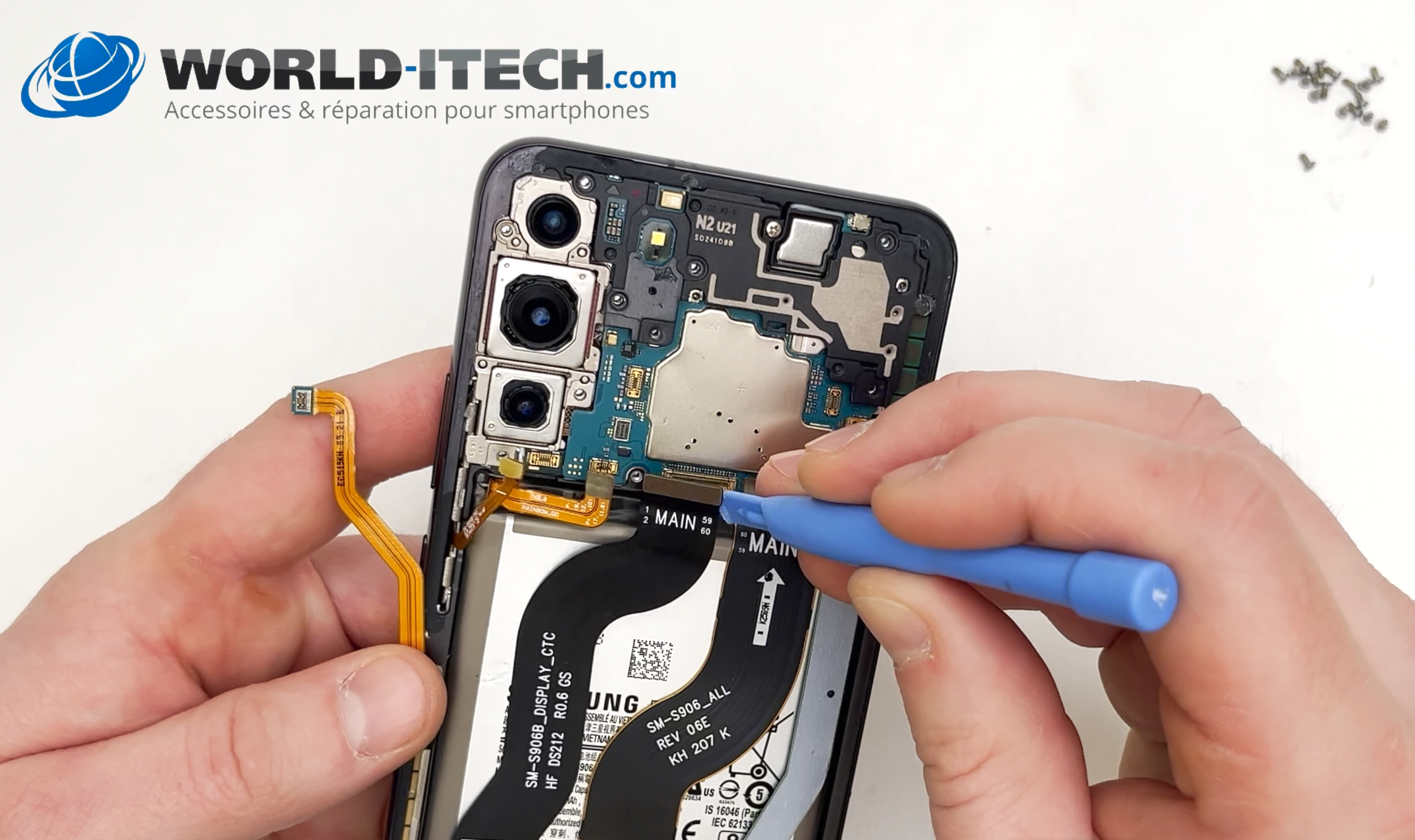
It is located to the right of the motherboard. Disconnect it using the spatula.

Disconnect the power and volume button ribbon cable:

It is located to the left of the battery ribbon cable. Disconnect it using the spatula.

Disconnect the interconnect, screen and network ribbon cables:

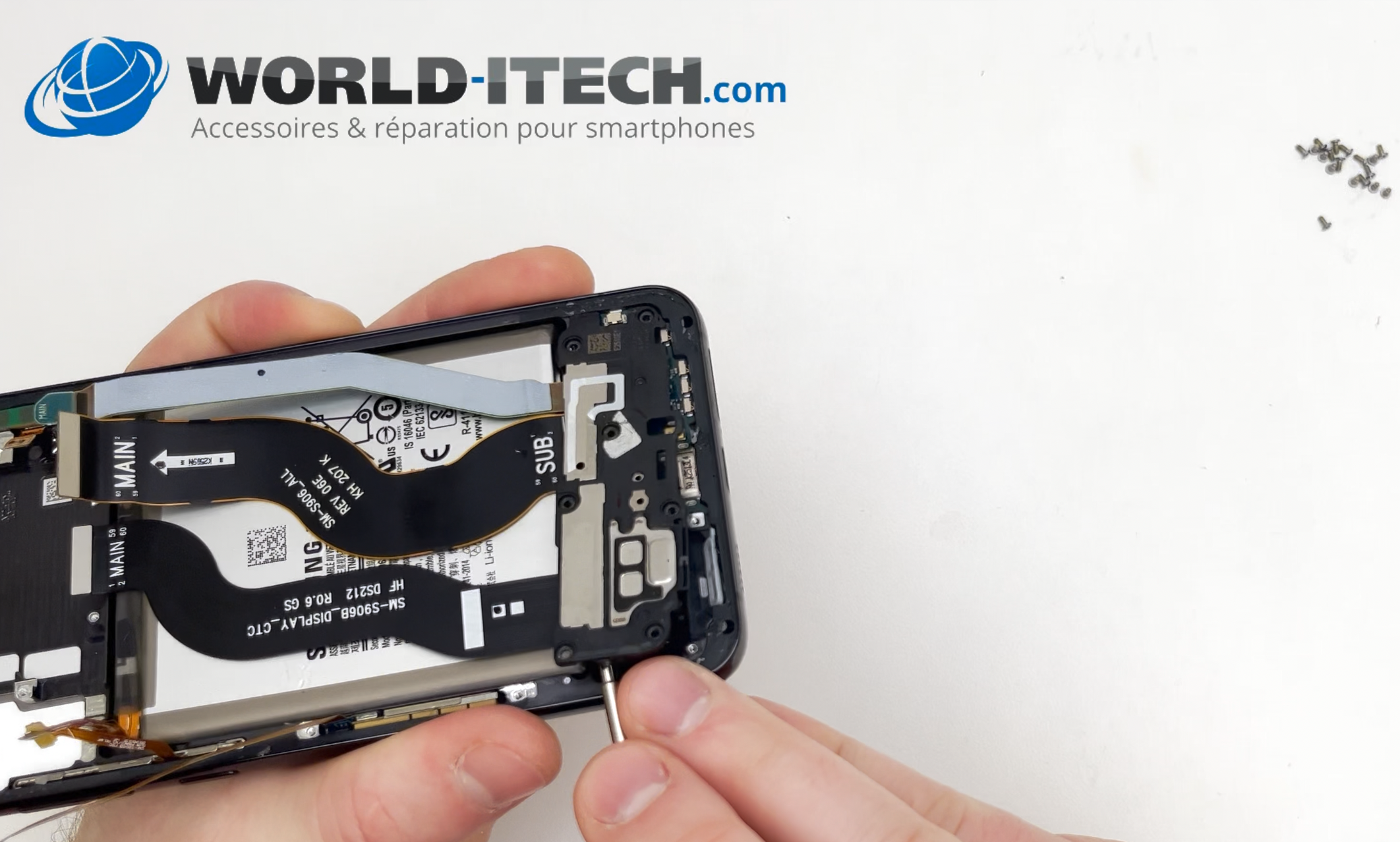
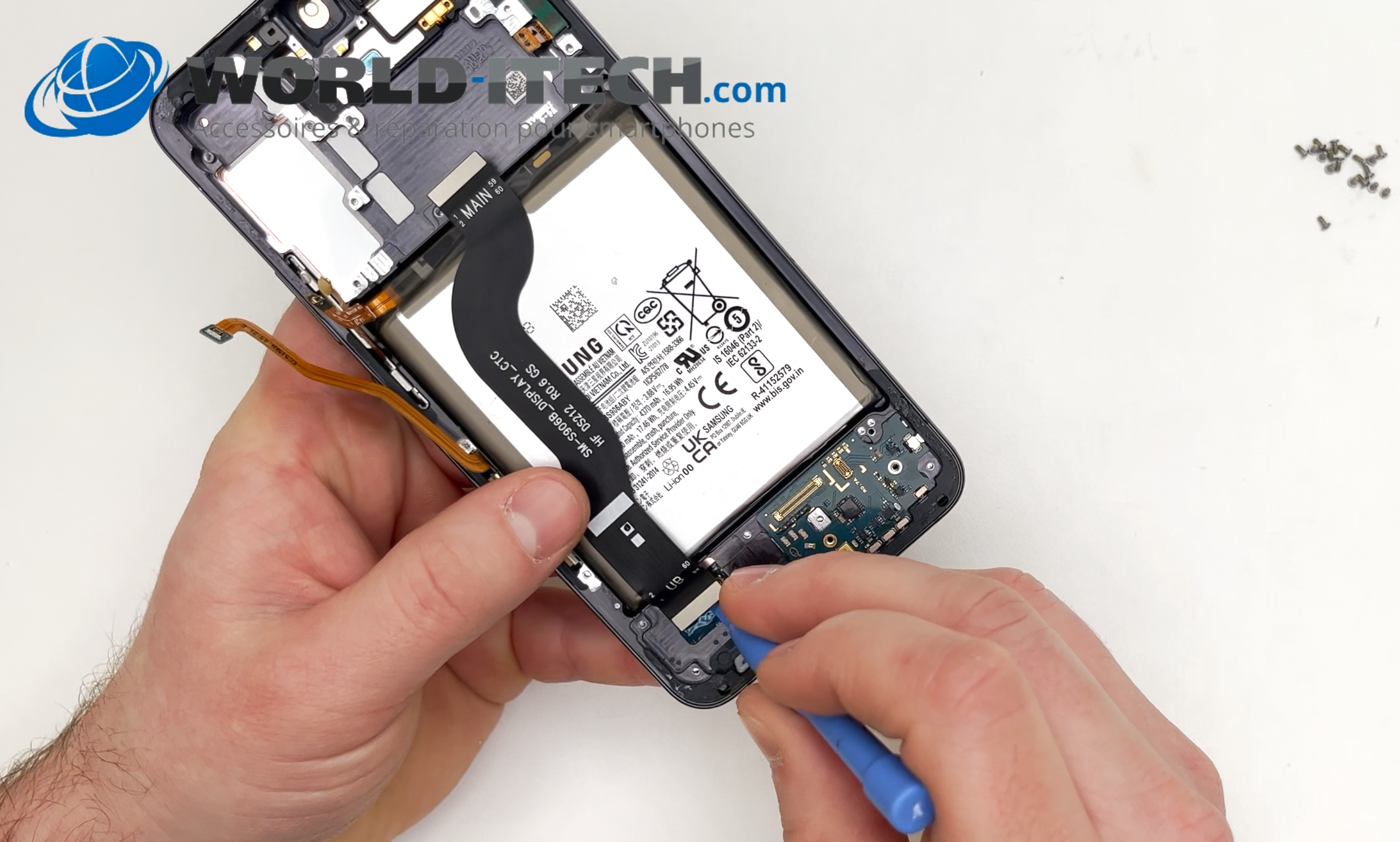
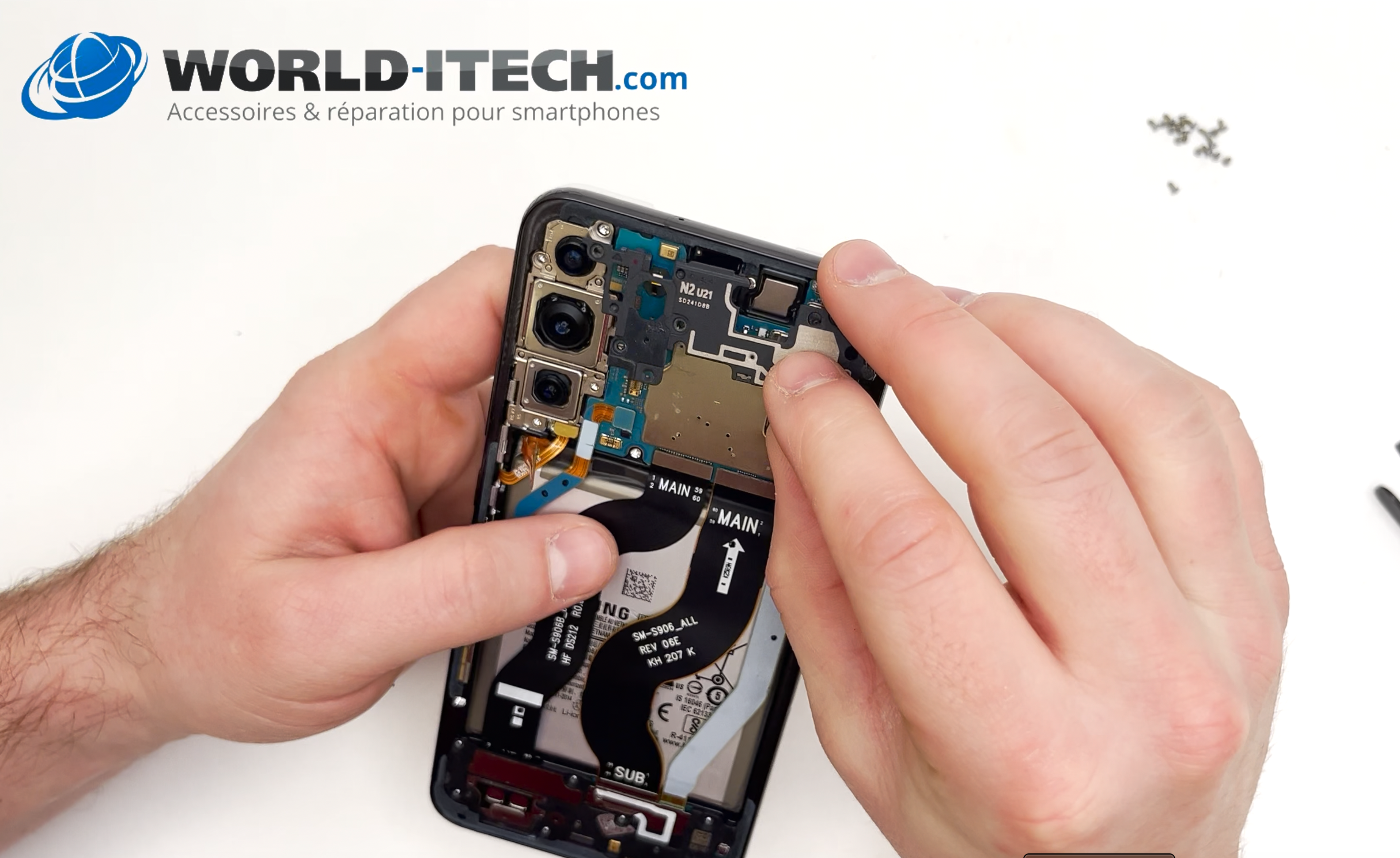
These are the three cables that run over the battery, connecting the motherboard at the top and the charging connector card at the bottom. Use a spatula to disconnect the top of the three cables.

Remove the plastic cover at the top of the motherboard:

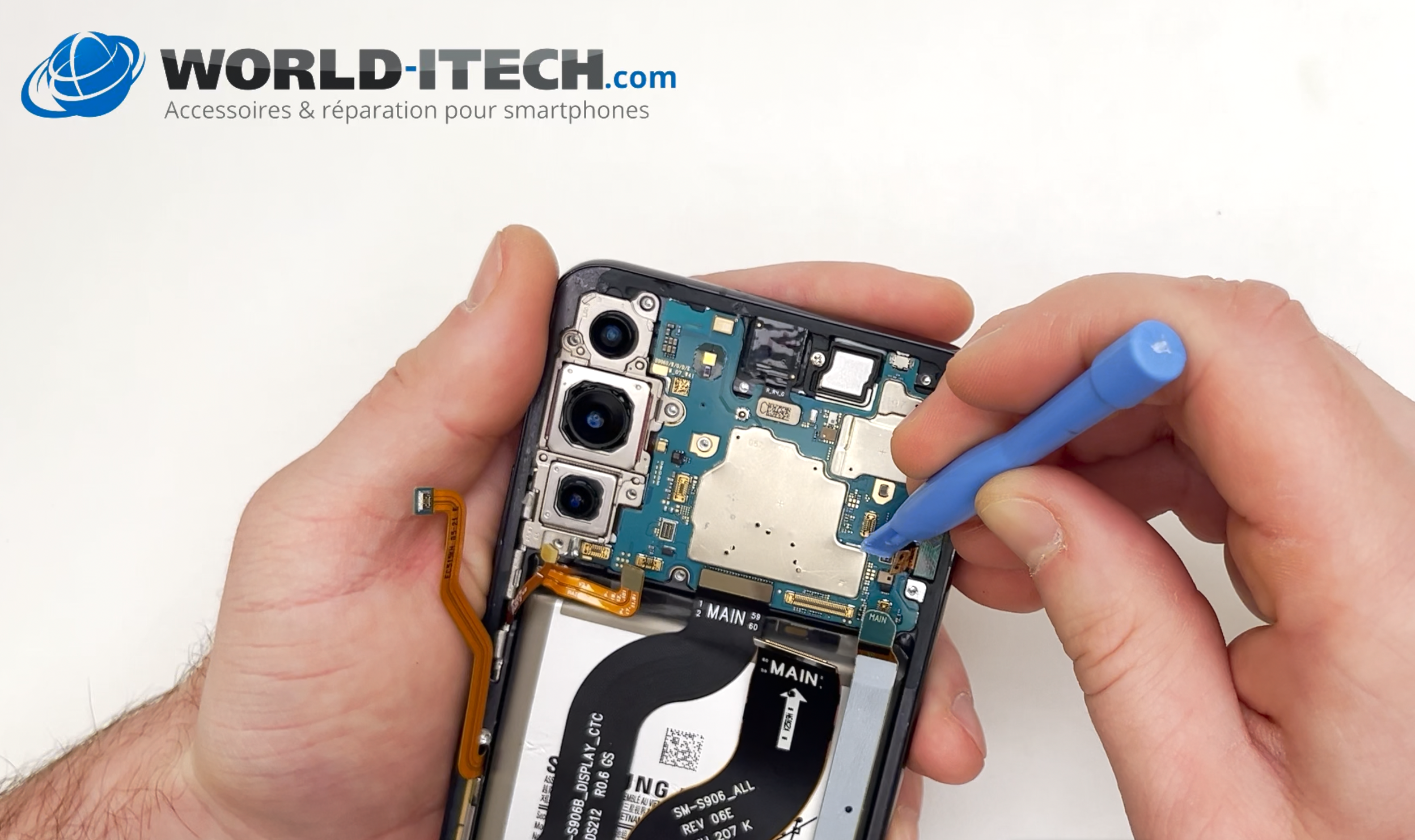
Using a spatula, pry up the cover to release it.

Disconnect the second network ribbon cable:

It is located to the right of the motherboard. NB: not all models have this ribbon cable. If it is not there, continue to the next step.

Disconnect the front camera ribbon cable:

It is located in the middle at the top of the motherboard. Disconnect it with the spatula, remove the camera and set it aside. 

Remove the motherboard:

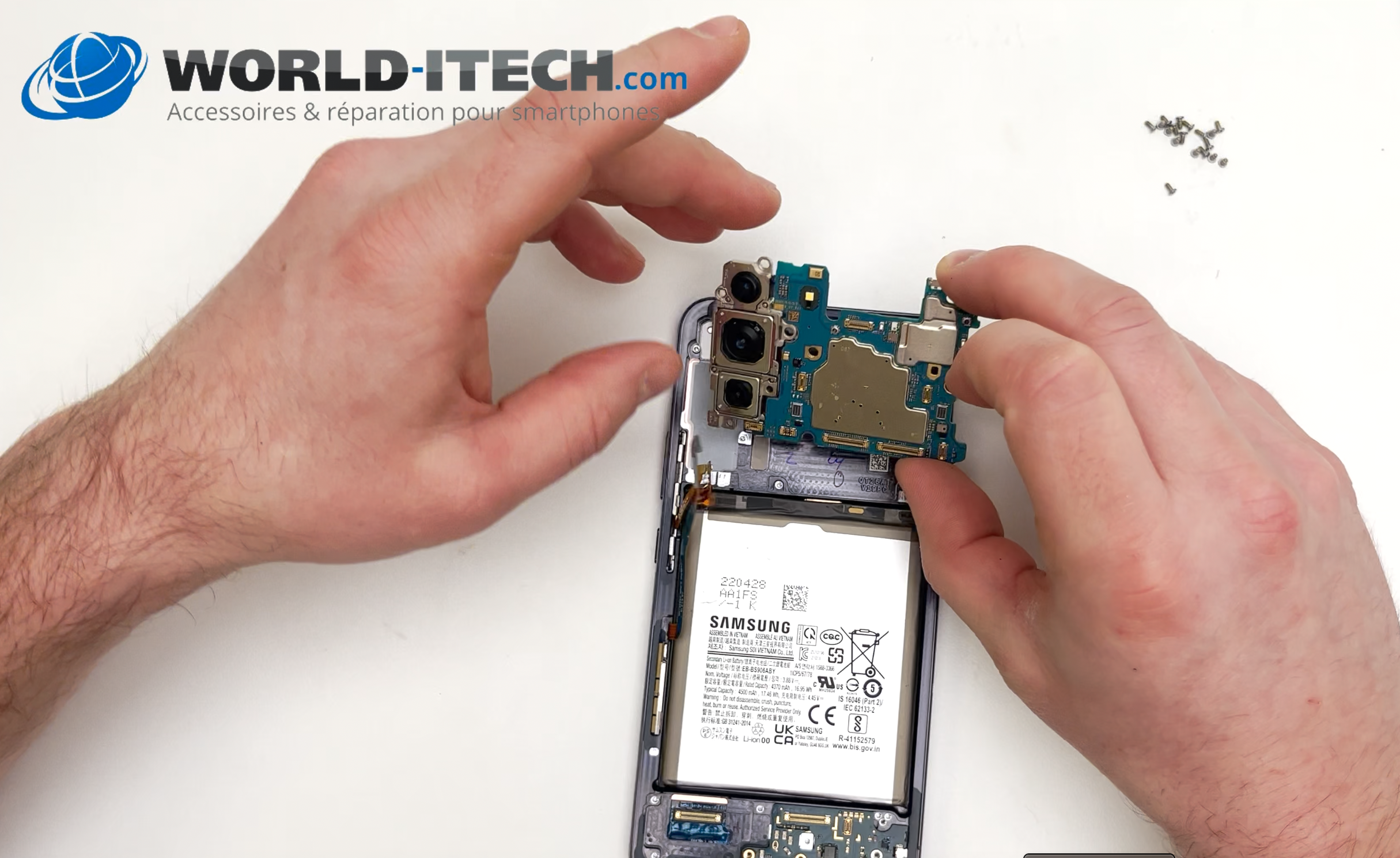
Use the spatula to lever out the motherboard.

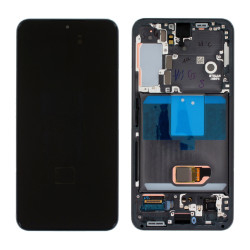
Now take your new screen unit. You can put the parts you remove from your old screen unit straight into it.

Remove the speaker: 

It is located at the bottom of the phone. Use a flat screwdriver to lever it out, then set it aside.

Disconnect the 3 cables: 

Using the spatula, disconnect the 3 antenna, interconnect and screen cables. Set them aside.

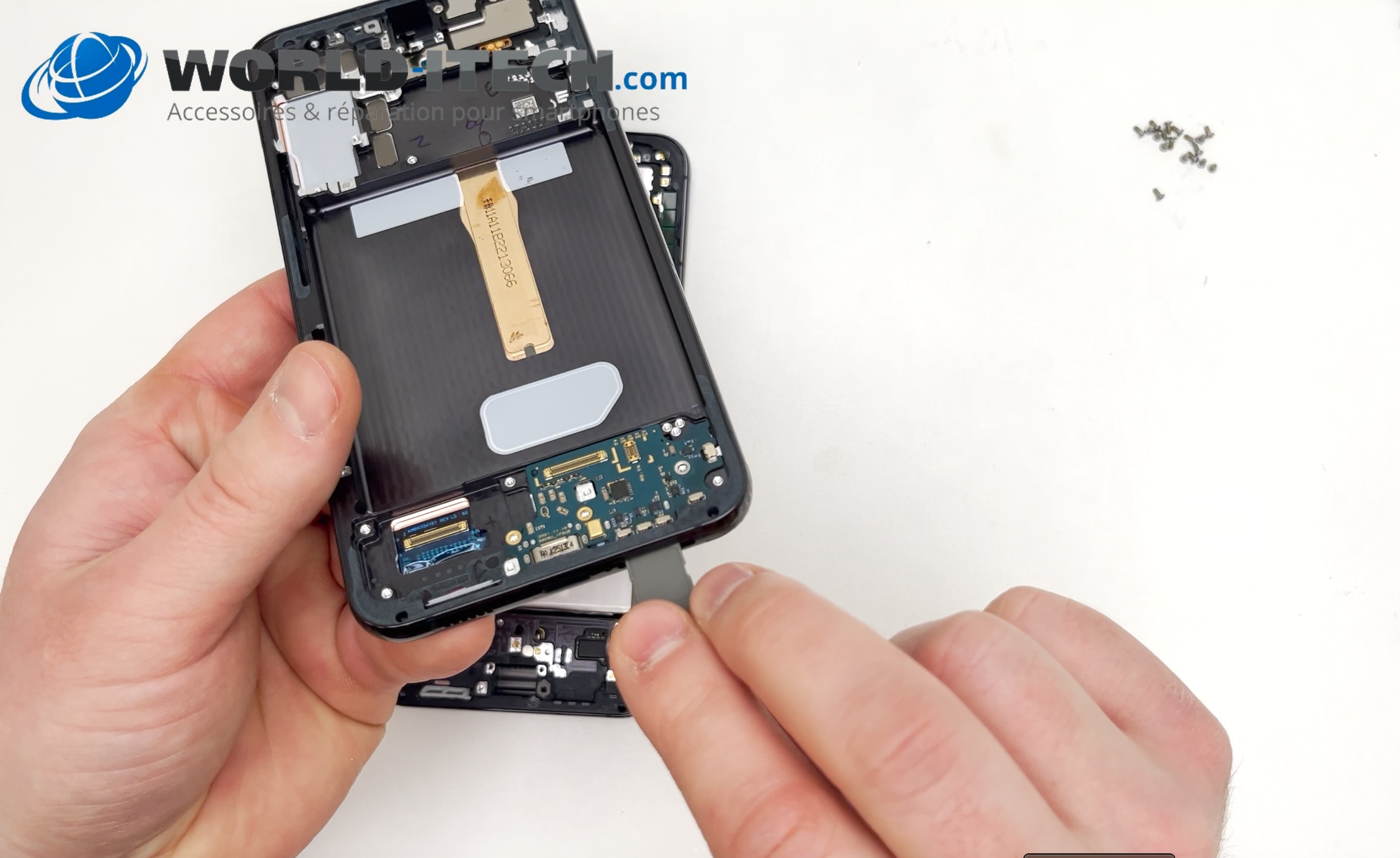
Remove the charging connector board:

Unscrew the 3 screws with the Phillips screwdriver. Using the spatula or flat screwdriver, lever the charging connector board out of its slot. Reinstall it directly into the new screen assembly and replace the SIM card tray.

Remove the battery:

Use the heat gun to heat the screen side for one minute to soften the adhesive. Take a metal pick or opener. Slide it under the battery and lever it up to remove it. 

Remove the old adhesive. You can use a blunt tool to avoid piercing the battery.

Apply new adhesive to the back of the battery and reinstall it in the new screen block.

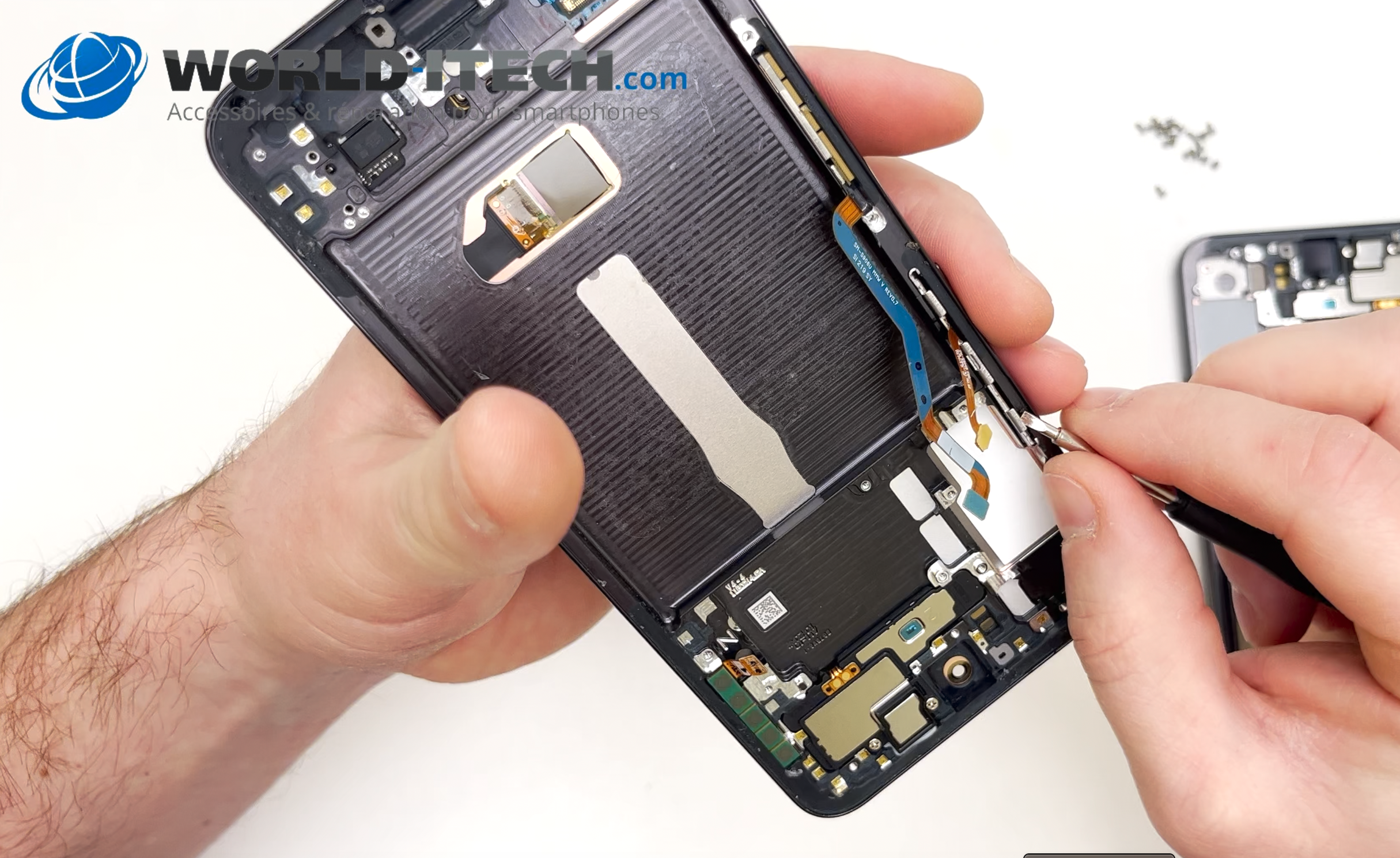
Remove the button ribbon cable:

Retrieve the ribbon cable for the power and volume buttons, as well as the buttons themselves if they are not included with the new screen assembly. Use a flathead screwdriver to remove it. Reinstall the ribbon cable and buttons, if applicable, in the new screen assembly.

Remove the network antenna ribbon cable:

This is located next to the button ribbon cable. Use a flat-head screwdriver to lever it out and reinstall it in the new screen assembly.

You can set your old display unit aside to recycle it later. 

Reinstall the motherboard

Take the motherboard and insert it into the new screen unit.

Reconnect the button ribbon cable and the antenna ribbon cable: 

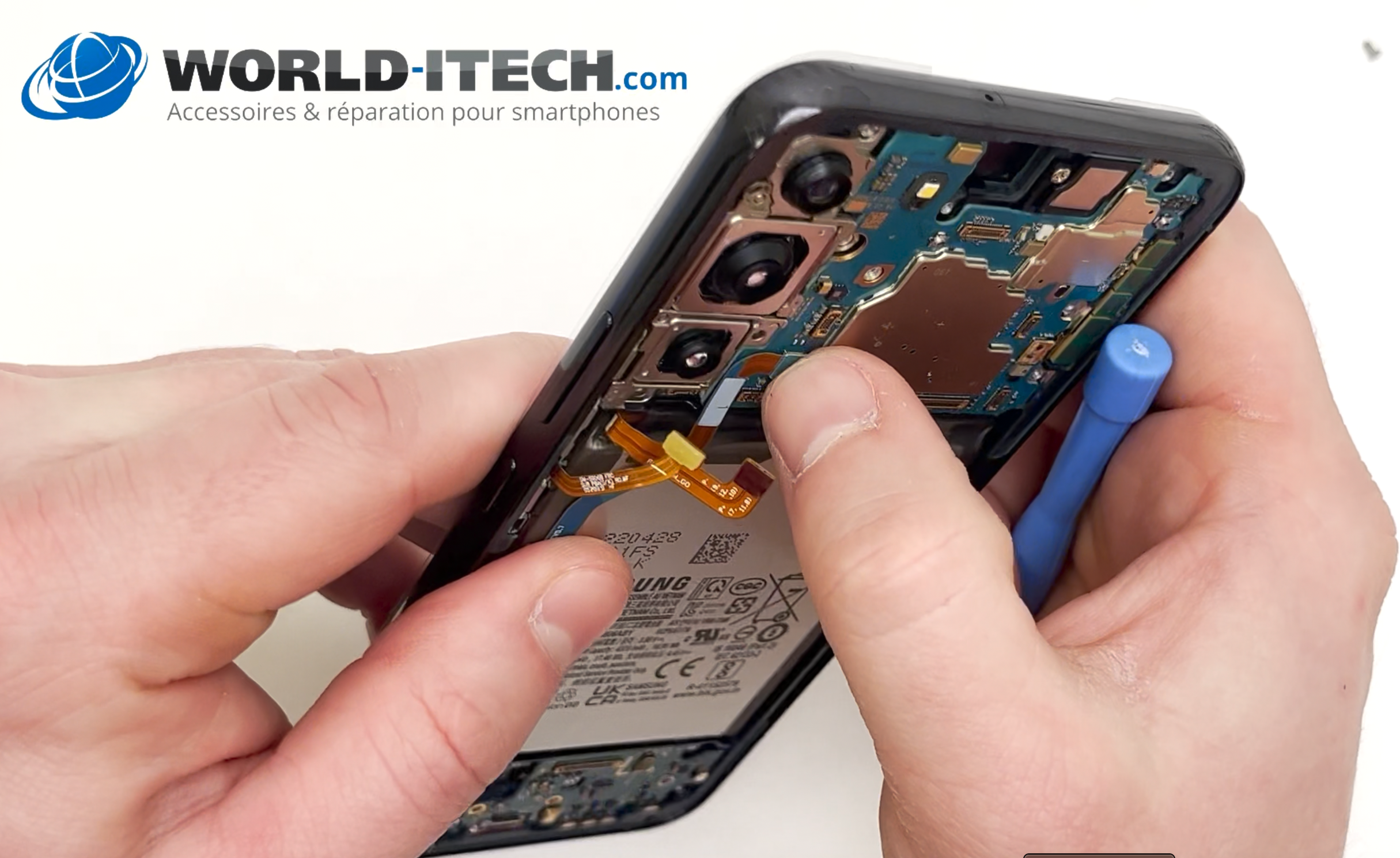
Reconnect the two cables to the motherboard. Be careful not to reconnect the battery cable at this stage.

Reconnect the interconnect, screen and network cables

Take the cables and reconnect them to the motherboard and the charging connector at the bottom.

Reinstall the front camera

Replace the front camera and reconnect its ribbon cable to the motherboard.

Reinstall the external speaker

Take the external speaker and place it back into the new screen assembly. Press lightly to clip it into place.

Replace the motherboard cover:

Replace the cover on the motherboard and press lightly to clip it into place.

Reconnect the battery: 

Reconnect the battery cable to the motherboard.

Reinstall the induction charging cable:

Start by reattaching the bottom and then ensure that the small metal plate at the top of the cable is correctly positioned. Then reconnect it to the motherboard.

Screw it back together:

Replace the screws and screw everything back together using the Phillips screwdriver.

Reinstall the rear window

Before reattaching it, remove the old adhesive seal. You can heat it slightly with a heat gun to make it easier to remove.

Option 1 with B7000 adhesive:

Apply a thin line of adhesive around the frame. Then take the screen and place it back on the frame. Hold the phone in your hands and press down for maximum adhesion. Use clamps or elastic bands, or place the phone under a heavy book for an hour to allow the adhesive to set.

Option 2 with a new seal:

You can order a new seal. Remove the protective covering from the seal and carefully attach it to the inside of the rear window. Remove the second protective covering to expose the double-sided adhesive. Then take the window and replace it on the frame. Hold the phone in your hands and press down for maximum adhesion. Use clamps or elastic bands, or place the phone under a heavy book for an hour.

The repair is complete.

The Samsung Galaxy S22, with its sophisticated design and exceptional performance, can unfortunately suffer damage over time. The good news is that you can fix the problem yourself. To do so, World iTecg offers quality spare parts, tailored to your phone model, including replacements for your Galaxy S22 screen.

Our selection of spare parts will allow you to reliably restore the visual and tactile quality of your device. We even offer a kit containing all the tools you need for the repair!

Choose from our stock of original spare parts for the Galaxy S22 and follow the steps in our tutorial to replace the screen. By choosing this solution, you will not only save on repair costs, but you will also be able to bring your phone back to life quickly and efficiently, without having to change phones.

Choose the DIY (Do It Yourself) solution for replacing the screen of your Samsung Galaxy S22 and give your device a new lease of life without hassle or excessive costs.

More articles

VISIT OUR BLOG
Advice
IPhone screen: understanding Hz and ProMotion

IPhone screen: understanding Hz and ProMotion

60 Hz, 90 Hz, 120 Hz, ProMotion: find out how the display frequency of an iPhone screen works,...

2025-11-28
Advice
What quality iPhone screen should I choose? TFT, INCELL, OLED, original

What quality iPhone screen should I choose? TFT, INCELL, OLED, original

TFT, INCELL, LTPS, hard and soft OLED, Service Pack, refurbished or pulled: find out which iPhone...

2025-11-26
News
OnePlus 13: Features and Release Date

OnePlus 13: Features and Release Date

OnePlus 13: Discover its features, innovations and expected release date. Everything you need to...

2025-03-04