Orders are dispatched the same day if placed before 3pm (Monday to Friday). Find out more

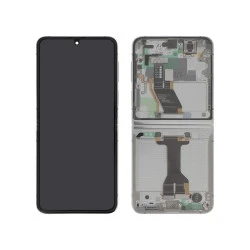
Have you replaced the screen assembly on your Samsung Galaxy Z Flip and now the main screen won't turn on? We'll explain how to fix it. If you're about to replace your screen, stay with us!

Black screen issue after changing the screen on the Z Flip

Several Z Flip owners have had the unpleasant surprise of finding themselves with a black screen following a repair (screen replacement).

This phenomenon is not the result of poor repair work or poor-quality parts. In fact, it even occurs with official Samsung screens.

It turns out that the problem stems from screen calibration. The magnets in the screen assembly need to be calibrated to detect when the screen is opened and closed, and thus to turn it on.

The good news is that there are several solutions to fix the problem. One can be done during the repair, and two can be done after the repair.

First solution: retrieve the magnets from your old monitor

This solution comes into play at the time of repair.

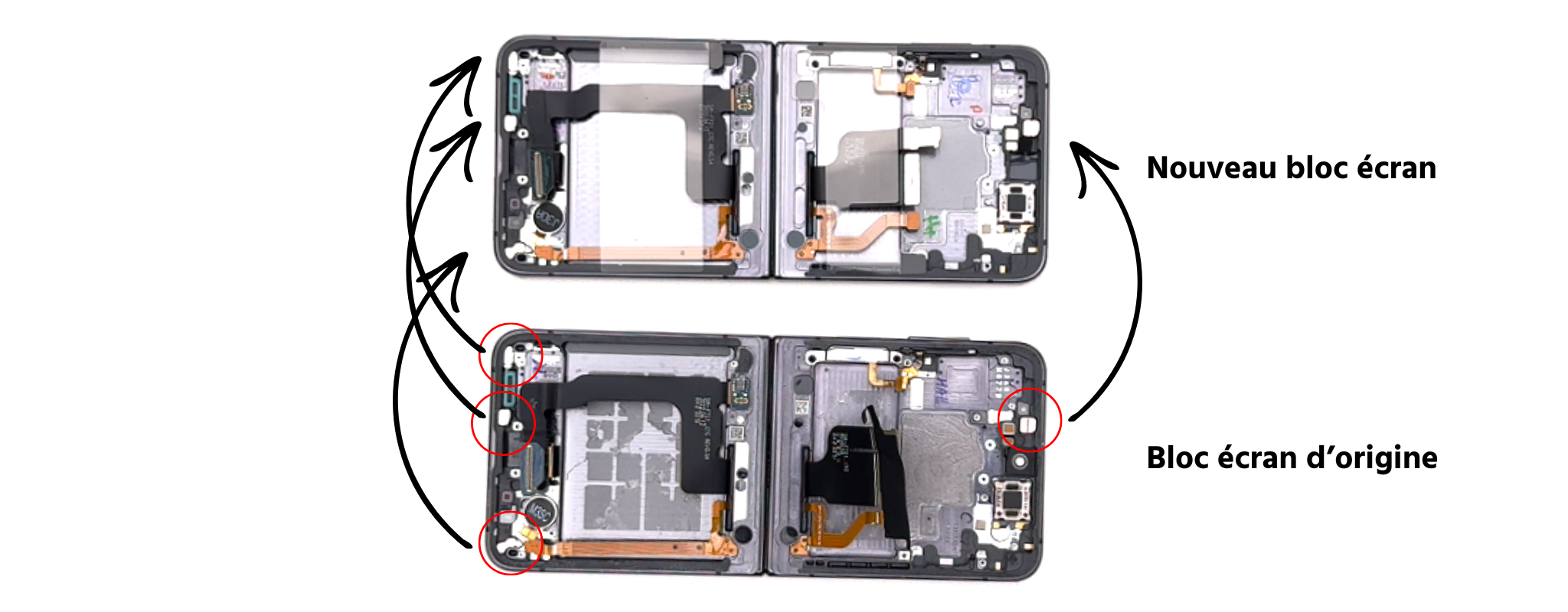
When you change your screen, you will need to retrieve the magnets from your old screen unit.

Even if your new screen already has magnets, retrieving the old ones will prevent the screen from needing to be recalibrated and you will not have any problems with a black screen.

To retrieve the old magnets, use small pliers or another tool that is thin enough to lever them out. Replace them in the designated slots in the new unit.

Second solution: recalibrate the screen using Samsung's "self-repair assistant" application.

Samsung has developed an application called "Self Repair Assistant" that can detect problems with certain parts and fix them without you having to do anything.

Here are the steps to recalibrate the screen.

STEP 1

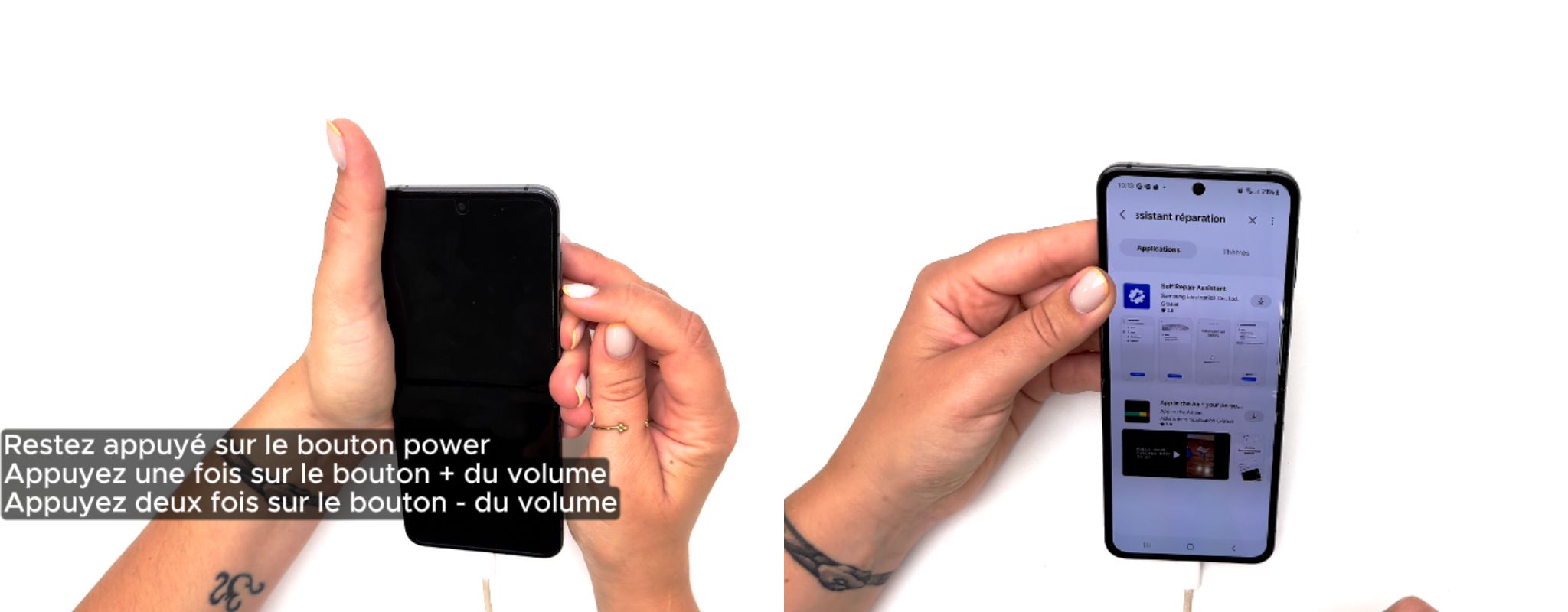
Connect your Z Flip to a power source.

STEP 2 

  • Open the phone.
  • press and hold the power button and do not release it,
  • press the volume up button once,
  • Press the volume down button twice.
  • the screen will light up, you can release the power button.

STEP 3

Open the Galaxy Store, type "self-repair assistant" in the search bar and download it. Launch the application and follow the instructions. (If you cannot find the application in the store, see the end of the article).

  • Launch the application
  • Press "Start"
  • Select "Screen"
  • Tap "Next"
  • Tap "Start"

The screen will be blank for a few seconds, then simply click on "Finish".

To see the complete procedure, watch the video at the beginning of the article.

Third solution: recalibrate the screen by re-magnetising the screen magnets + Self Repair Assistant application

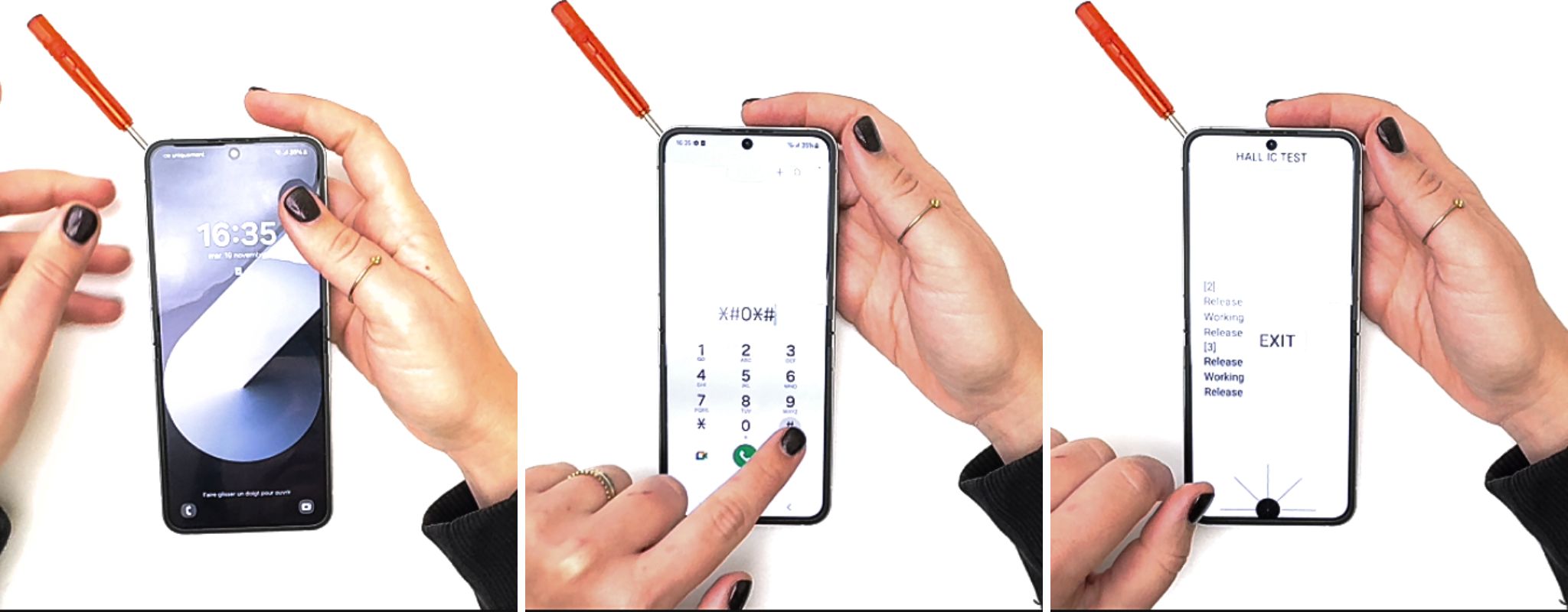
Use a magnetic screwdriver (all screwdrivers in our tool kit are magnetic).

  1. Place the screwdriver at the top left under the phone. The screen will light up. 
  2. With the screwdriver still in place, go to "Phone" and enter *#0*#.
  3. Press "HALL IC".
  4. Remove the screwdriver for the first time.
  5. Replace the screwdriver in the same place.
  6. Remove the screwdriver a second time.
  7. Press EXIT.

Close the phone and reopen it. If the screen is still black after this procedure, repeat the operation and then combine it with a recalibration via the "Self Repair Assistant" application:

Open the Galaxy Store, type "self repair assistant" in the search bar and download it. Launch the application and follow the instructions. (If you cannot find the application in the store, see the end of the article).

  • Launch the application
  • Press "Start"
  • Select "Screen"
  • Tap "Next"
  • Tap "Start"

The screen will be blank for a few seconds, then simply click on "Finish".

I can't find the "Self Repair Assistant" app in the Galaxy Store. What should I do?

If you can't find the app in the Galaxy Store, don't panic. Several users are experiencing this issue.

You can download the app directly to your Z Flip from your web browser via this link: https://www.apkmirror.com/apk/samsung-electronics-co-ltd/self-repair-assistant/self-repair-assistant-2-0-17-release/self-repair-assistant-2-0-17-android-apk-download/

All you have to do is install the app and then open it by following the instructions above.

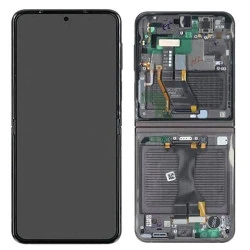
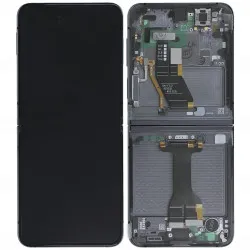
Need a screen for your Z Flip? 

More articles

VISIT OUR BLOG
Advice
IPhone screen: understanding Hz and ProMotion

IPhone screen: understanding Hz and ProMotion

60 Hz, 90 Hz, 120 Hz, ProMotion: find out how the display frequency of an iPhone screen works,...

2025-11-28
Advice
What quality iPhone screen should I choose? TFT, INCELL, OLED, original

What quality iPhone screen should I choose? TFT, INCELL, OLED, original

TFT, INCELL, LTPS, hard and soft OLED, Service Pack, refurbished or pulled: find out which iPhone...

2025-11-26
News
OnePlus 13: Features and Release Date

OnePlus 13: Features and Release Date

OnePlus 13: Discover its features, innovations and expected release date. Everything you need to...

2025-03-04