Orders are dispatched the same day if placed before 3pm (Monday to Friday). Find out more

Did you know that you can manage your Google account and maximise its security?

Google offers protection services and check-ups to help protect your personal data. But you still need to check your settings!

Here's how to check and secure your Google account in just a few minutes.

Access Security settings

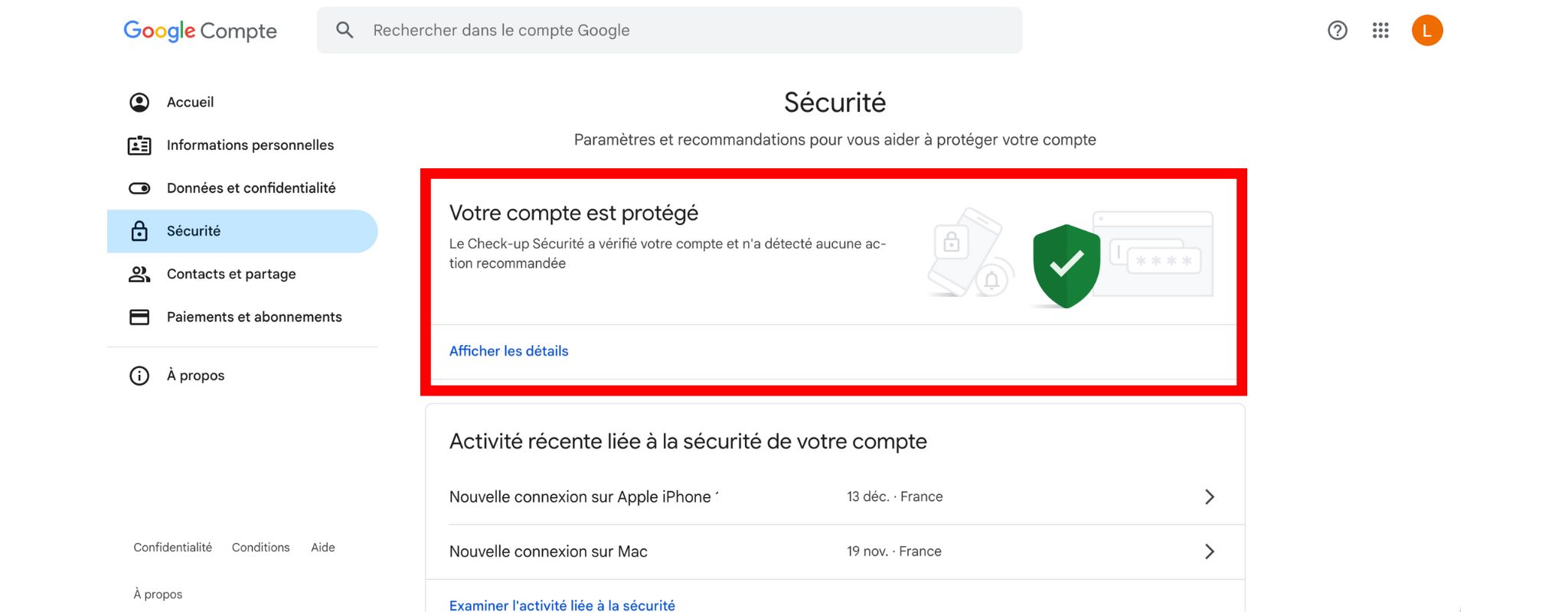
Go to your Google account and click on "Security" in the left sidebar.

Enable Security Check-up

Google suggests that you perform a security check-up. If nothing appears in this section, it means that your account is optimally configured.

If this is not the case, you will be offered certain actions that Google considers useful for securing your account, such as changing your password or using two-factor authentication.

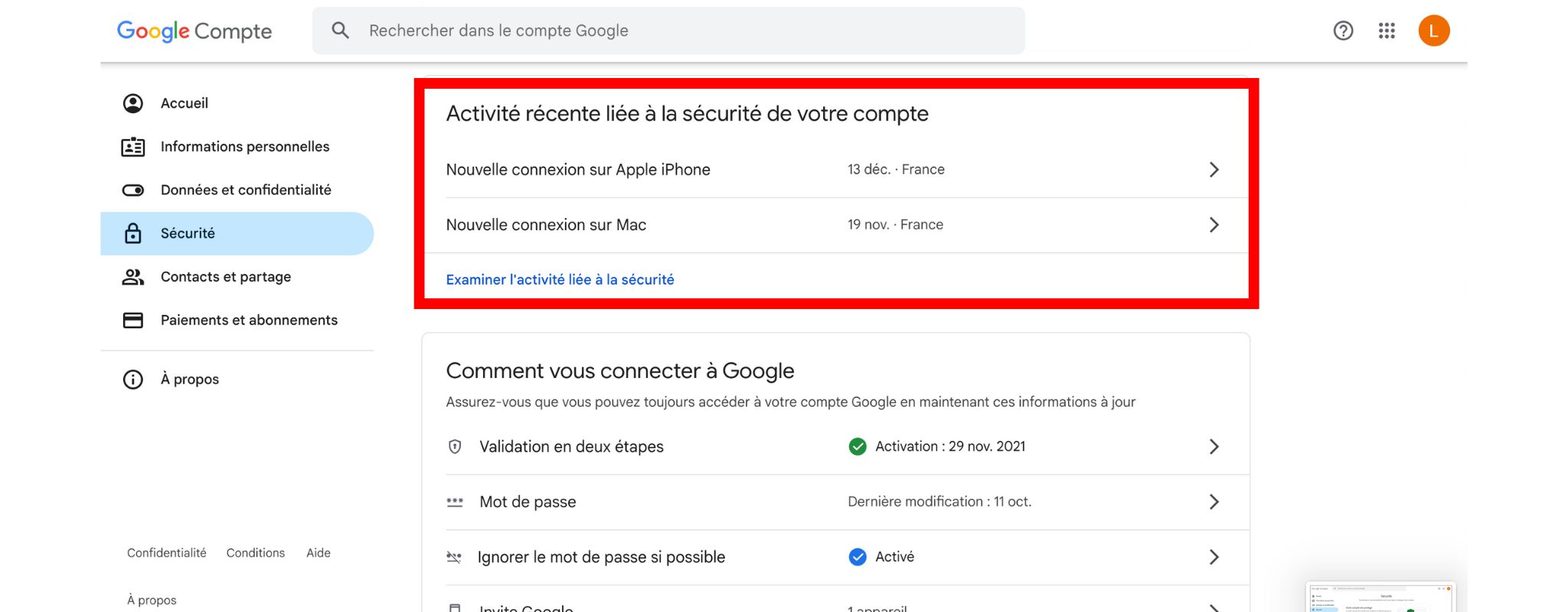
Check recent activity on your account

In this section, you will find your account's recent activity. This includes the latest logins detected on your account.

Click on "Review security-related activity". Check the list to see if you see any logins that do not appear to be your own activity. For example, a device that does not belong to you, a date on which you did not use your device, or an unknown login location. NB: the location is sometimes approximate. A city other than the one where you logged in may appear. 

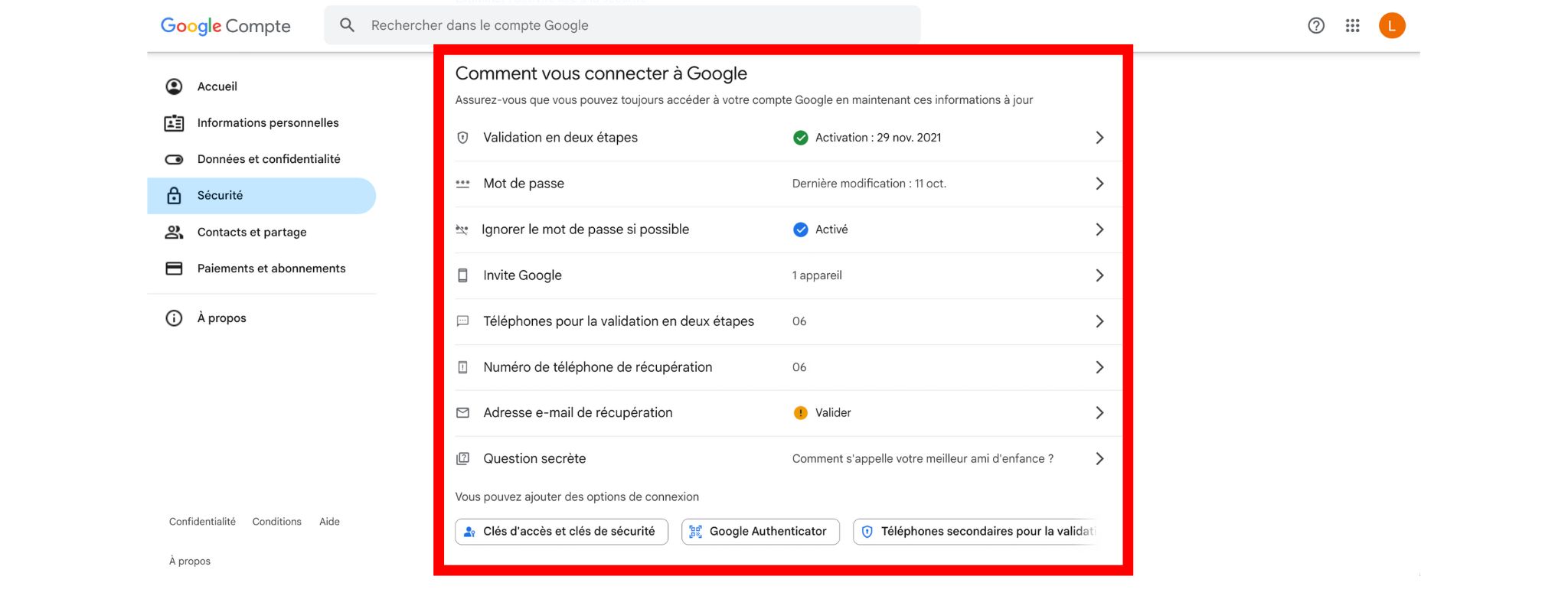
Check the login details for your account.

This is one of the most important sections for securing your account. We strongly recommend that you fill in all these settings and update them as necessary.

  • Two-step verification: this provides double security for all your logins. Whenever you want to log in on a new device or third-party application, you will be asked to confirm your login either by entering a code sent to your mobile number or by logging in to Gmail on one of your already connected devices.

  • Password: you will be shown the date your password was last changed. It is recommended that you change your password regularly to prevent hacking.

  • Skip password if possible: this option allows you to stay logged in when your connection is detected as secure (e.g. a device you use regularly). You can ignore this option and enter your password each time you log in.

Google prompt: 

  • Phone for two-step verification: you can enter a phone number, preferably your own, to receive the code you will need to use for two-step verification.

  • Recovery phone number: we recommend that you enter the number of a trusted friend or family member. This will be useful if you lose your phone and need to access your Google account.

  • Recovery email address: you can either enter an email address other than the one associated with your Google account, or the email address of a trusted friend or family member, so that you can recover your account if it is hacked.

  • Secret question: you will be asked for the answer if you request to recover your account. Be sure to use a question that only you know the answer to and that you will have no trouble remembering.

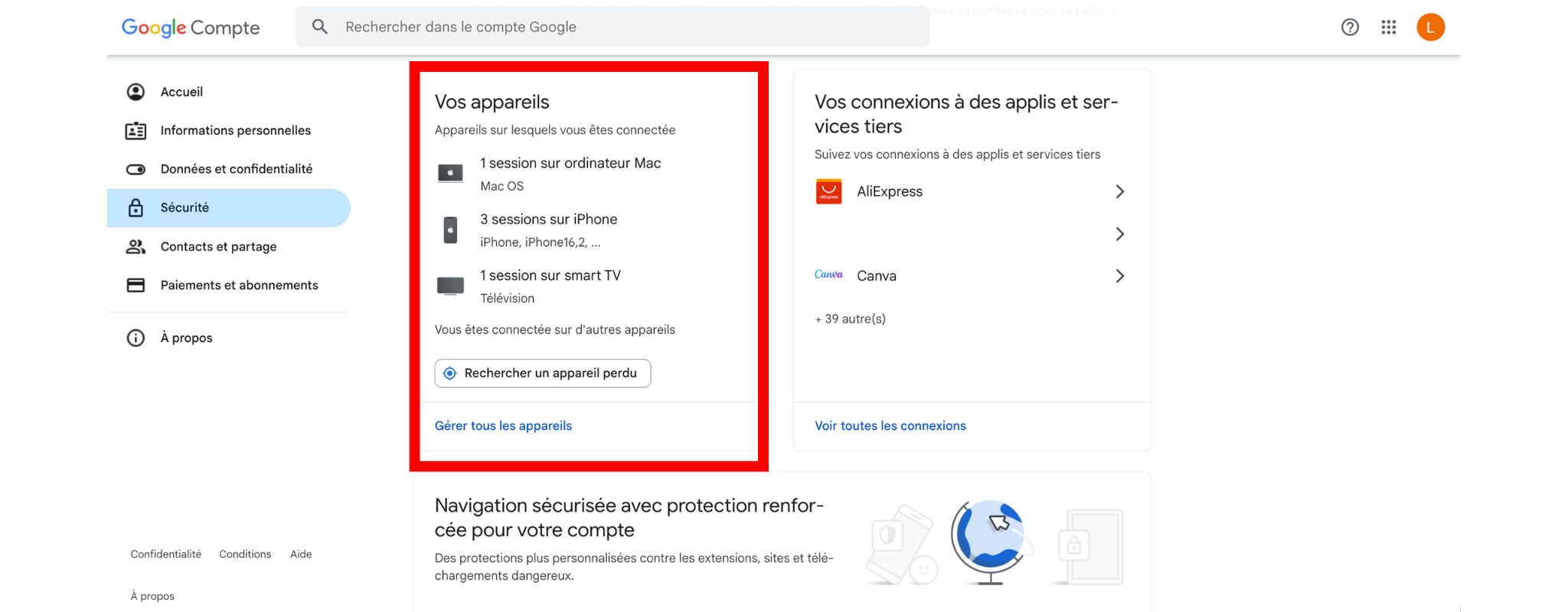
Check the devices connected to your account

In this section, you will find the history of all devices that have been used at least once to sign in to your Google account.

Click on "Manage all devices" to access the list.

If you see a device you do not recognise, you can delete it. This will log you out of that device. 

We recommend that you also change your password if necessary.

Check connections to third-party applications and websites 

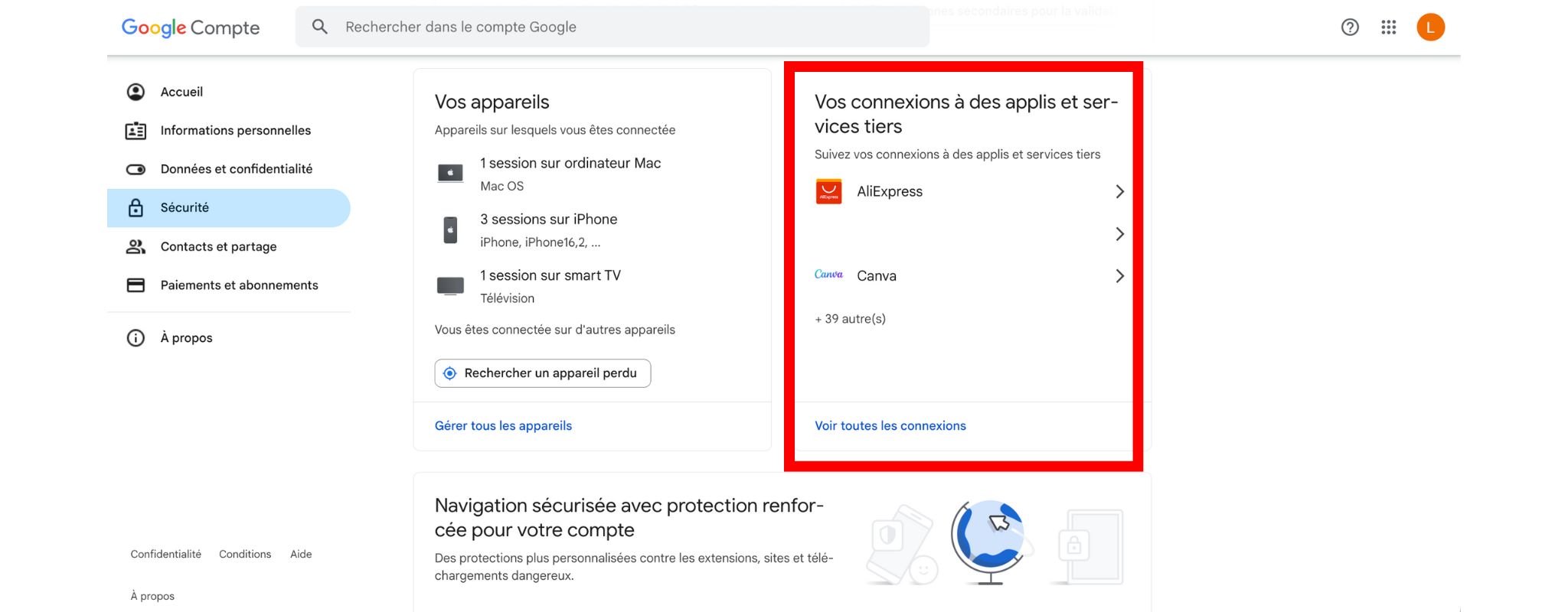
In this section, you will find all the third-party websites and applications for which you have used your Google account to log in.

To access this list, click on "See all connections".

You can then choose to log out of these applications and websites. Please note that this will not delete any other data you may have entered into these applications! You will need to log in directly to each of these applications to manage your information stored there.

Enable Safe Browsing with secure protection

This option allows you to further enhance the security of your connections. Google will notify you if downloads or websites are potentially dangerous.

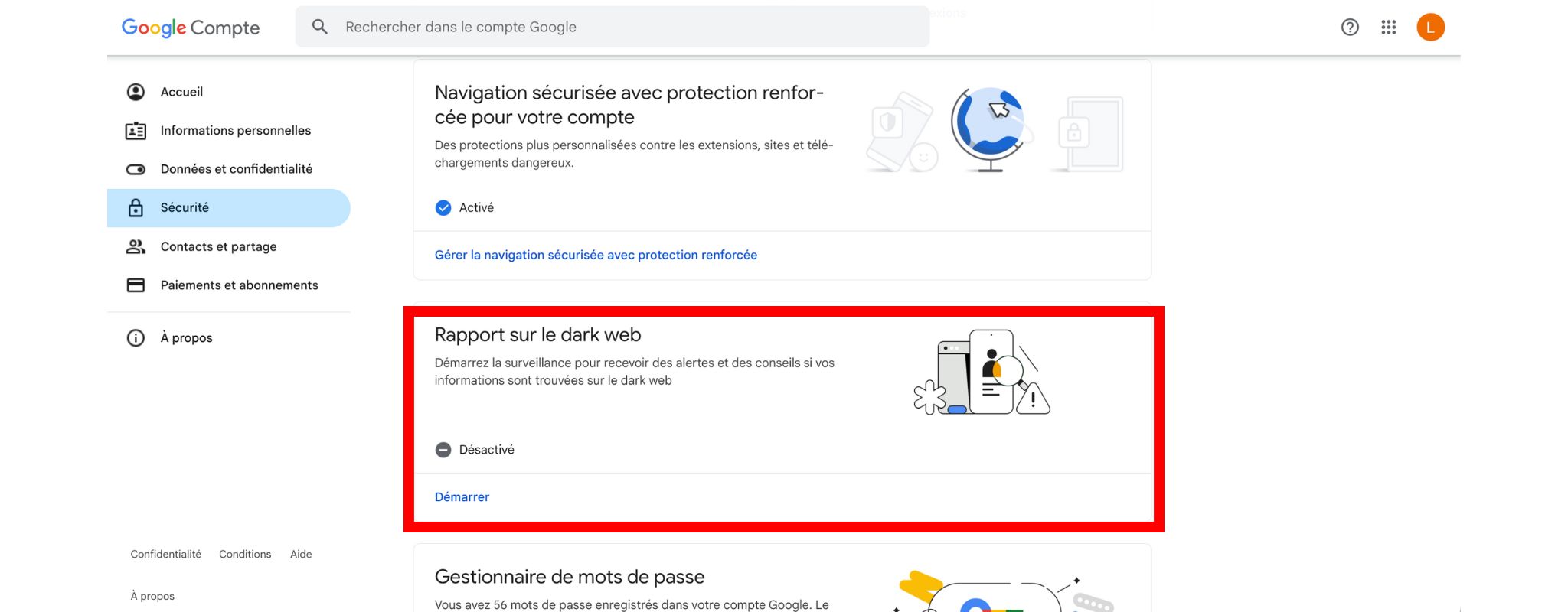
Request a report on the Dark Web

You can request a report by clicking on "Start". Google will list the sites that may have leaked your data on the Dark Web.

If one or more sites/applications appear, here is what you can do: 

  • change your Google account password,
  • log in to the site/application in question to modify or delete your information.

Check how you manage your passwords

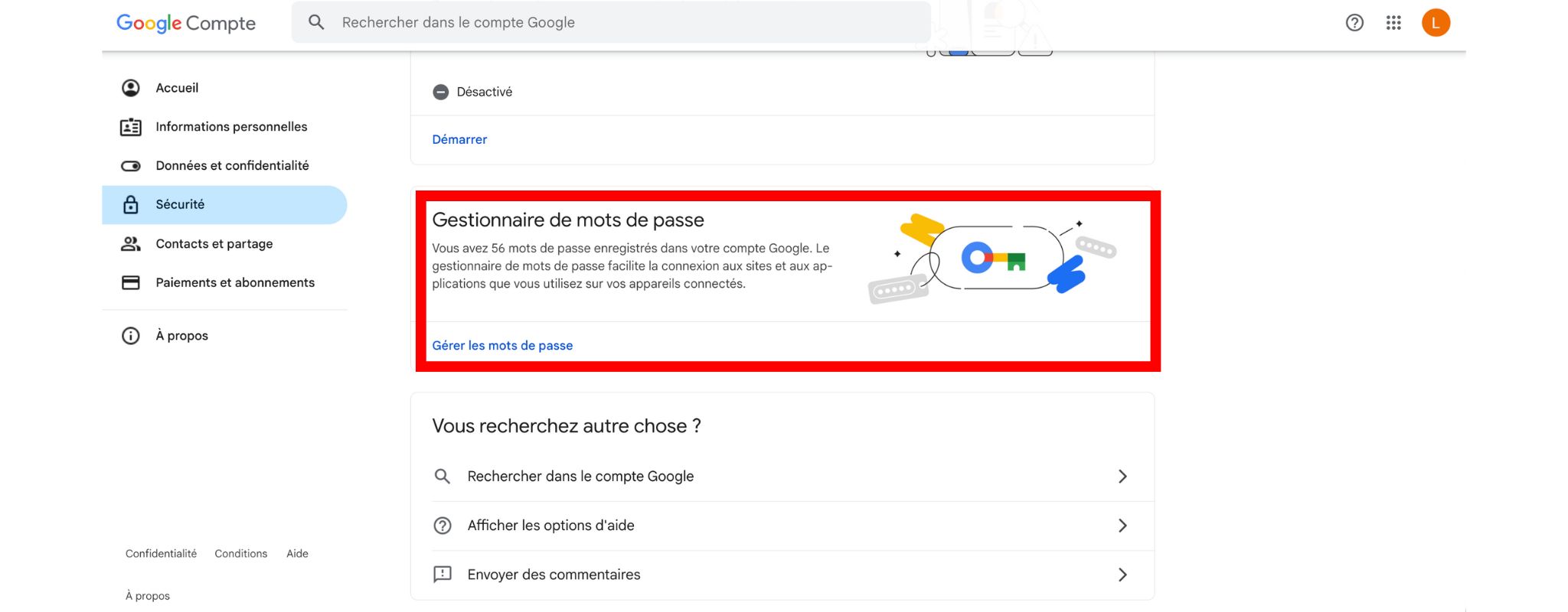
This feature allows you to save your passwords and make logging in easier.

You can click on "manage your passwords" to see the list of websites and applications for which passwords have been saved and modify the list as you wish.

More articles

VISIT OUR BLOG
Advice
IPhone screen: understanding Hz and ProMotion

IPhone screen: understanding Hz and ProMotion

60 Hz, 90 Hz, 120 Hz, ProMotion: find out how the display frequency of an iPhone screen works,...

2025-11-28
Advice
What quality iPhone screen should I choose? TFT, INCELL, OLED, original

What quality iPhone screen should I choose? TFT, INCELL, OLED, original

TFT, INCELL, LTPS, hard and soft OLED, Service Pack, refurbished or pulled: find out which iPhone...

2025-11-26
News
OnePlus 13: Features and Release Date

OnePlus 13: Features and Release Date

OnePlus 13: Discover its features, innovations and expected release date. Everything you need to...

2025-03-04